


Guide: 4Media iPhone to Mac Transfer


This step-by-step guide will show you how to transfer files from iPhone to Mac/iTunes and Mac to iPhone and manage iPhone files with 4Media iPhone to Mac Transfer.
Firstly, please download, install and run 4Media iPhone to Mac Transfer, and make sure you have iTunes 7.4 or above version installed.
Secondly, connect your iPhone to PC via USB cable. The software will automatically detect the iPhone and show its device info on the right window.
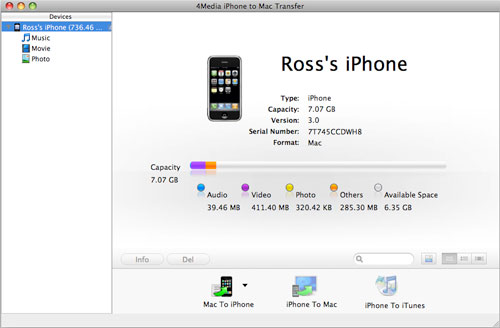
To be clear, we divide this guide into 4 parts as below. Choose what you want to do as required:
1. Transfer files from Mac to iPhone
2. Backup iPhone files to Mac
3. Copy iPhone files to iTunes library
4. iPhone management skills
Part 1: Transfer files from Mac to iPhone
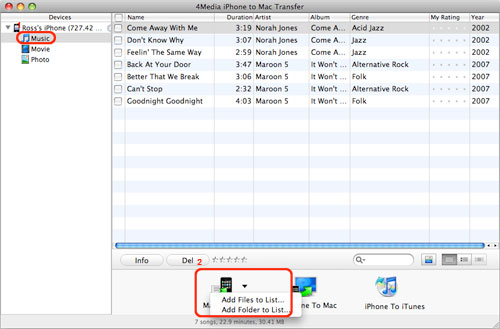
Step 1: Locate the library/playlist in which you want to add files.
Step 2: Click the "Mac to iPhone" button, and choose the "Add Files to List..." option from the drop-down list, then select the required files in the dialog that opens and start to transfer them to iPhone.
Or, if you want to add all the files in a folder, please click the "Mac to iPhone" button and choose the "Add Folder to List..." option, and then locate the folder you want and transfer all the files in it to your iPhone.
Part 2: Backup iPhone files to Mac
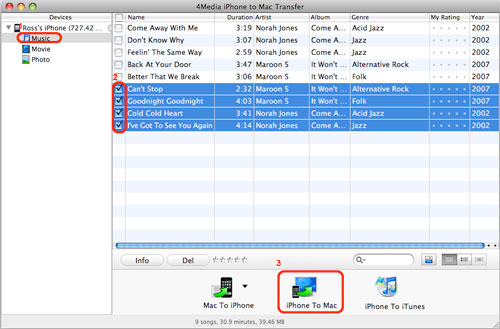
Step 1: Check the files you want to backup in the file list.
Step 2: Click the "iPhone to Mac" button to select the target folder for saving iPhone files in the dialog that appears, and then start to transfer iPhone contents to your Mac.
Part 3: Copy iPhone files to iTunes library
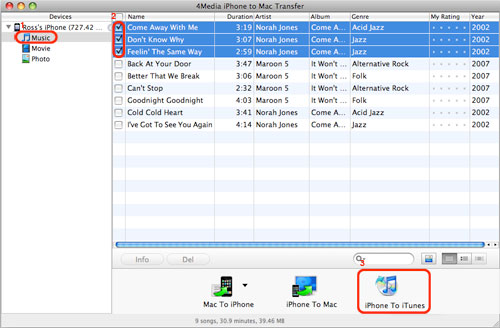
Step 1: Check the files you want to copy to iTunes in the file list.
Step 2: Click the "iPhone to iTunes" button to start exporting these checked files to iTunes library.
Part 4: iPhone management skills
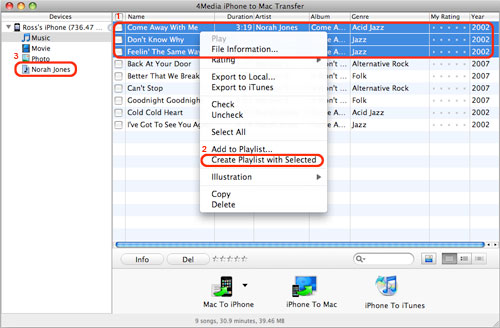
1. Create and manage iPhone playlist
Step 1: Select the music files you want to add to the playlist in the music library.
Step 2: Right click the selected files, and choose "Create Playlist with Selected" option from the right-click menu that appears, then a new playlist is created.
Step 3: Right click the newly added playlist and choose "Rename" option from the right-click menu, then enter a name as the playlist name.
Tips:
1. You can also create a playlist by clicking "File -> Playlist" option and choosing "New Playlist" option from the submenu or right clicking any library and choosing "New Playlist" option from the right-click menu.
2. Choose the playlist you created, and click "Mac to iPhone" button to add files to your playlist.
2. Locate the file quickly in two ways
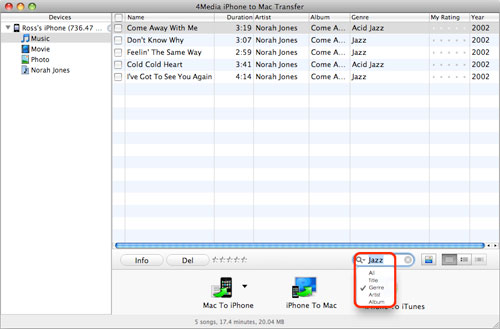
1) Click the "Quickly browse your iPhone library" button, and you can find that the files sorted by genre, artist, and album from the pop-up window.

2) Click the "Quick search of item, artist, and album" button, choose the "Name" option and input what you want to search in the textbox.
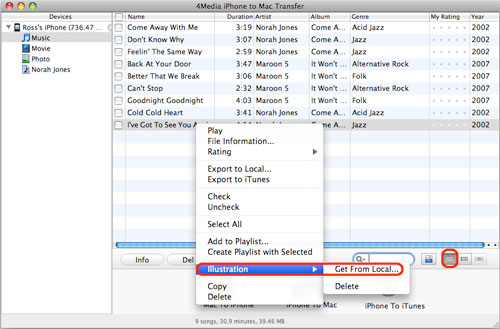
3. View files in two modes
Click the "View in List" button to view files in list mode.
Click the "View in Illustration" button to view files in illustration mode. Right click a file to add an illustration for the file.
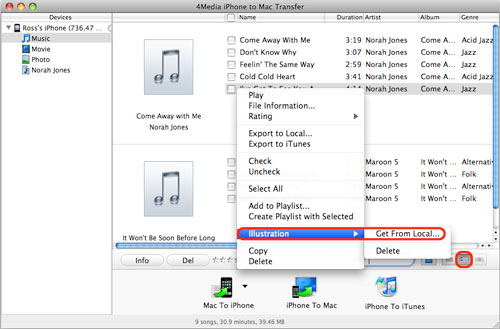
Tip: To add an illustration for a file, right click the file and click "Illustration > Get from Local..." option to choose a picture as the illustration in the dialog that opens.
4. Open iPhone with Finder
Click "File -> Open with Finder", then your iPhone will be opened with Finder, you can view all the files in the Finder and use your iPhone as a portable hard disk now.

Featured Guides
Guides Categories
Video/Audio Guides
- 4Media Audio Converter Pro Tutorial
- 4Media Movie Editor 6 Tutorial
- Video Converter Ultimate Tutorial
- How to convert DAT to other videos
DVD/CD/Blu-Ray Guides
- 4Media Blu Ray Converter for Mac Tutorial
- How to convert Blu-ray disc to video files
- How to burn AVI, MPEG, VOB, DAT, M2V, MPG to DVD on Mac
- How to burn DivX to DVD on Mac
iPod Guides
- 4Media iPod Max Guide
- How to convert AVI, MPEG to iPod MP4 format
- Guide: 4Media iPod to PC Transfer
- How to convert DVD to iPod on Mac
iPhone Guides
- 4Media iPhone Contacts Transfer for Mac Tutorial
- 4Media iPhone Contacts Transfer Tutorial
- 4Media iPhone Ringtone Maker for Mac Tutorial
- 4Media iPhone Max Guide
iPad Guides
Youtube/Online Video Guides
- 4Media Online Video Converter for Mac Guide
- 4Media Online Video Downloader for Mac Guide
- 4Media Online Video Converter Guide
- 4Media Online Video Downloader Guide
PPT/PDF Guides
Others
Articles
- How to download YouTube videos for free
- How to download/convert YouTube videos to iPod
- How to download and convert YouTube videos
- All features of apple iPhone
- Now you can get more TV offerings from Apple iTunes
- Video Streamer HAVA from Snappy Multimedia
- iPod Growth Driving Demand for Flash Memory
- MediaMan HVX-3500 Review
- Uncertain whether new iPod will be delayed or not because of hurdles
- T3's top five iPod alternatives
- Envivio Exhibits MPEG-4 Solutions from Mobile to HD at CCBN2006