


How to download/convert YouTube HD videos to PSP, Mobile
4Media YouTube Video Converter helps you download YouTube videos at ease. It offers two ways to download the YouTube videos: direct download and custom download. With the direct download, you can download YouTube videos with preferred settings, while with the custom download, you can choose the resolution and format as you want to download. After the download is complete, you can convert the videos to other video/audio formats or some devices.
The guide below will show you how to download videos from www.youtube.com and how to convert Youtube videos to other video files suitable for various players and devices with 4Media YouTube Video Converter step by step.
This guide is divided into three parts
Part1: Download YouTube videos with preferred settings.
Part2: Download YouTube videos with custom settings.
Part3: Convert the downloaded videos to devices or other video/audio formats.
At first, download, install and launch 4Media YouTube Video Converter. Below is the first interface after launch.
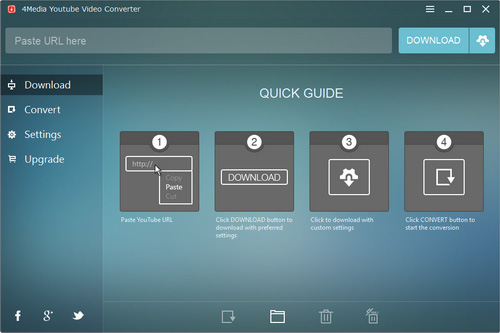
Part1: Download YouTube videos with preferred settings.
This program provides the preferred settings, it enables you to download optimized YouTube video easily.
1. Paste YouTube URL to the input box.
Copy the YouTube URL when you preview the video on YouTube and switch to the software, the URL will be pasted to the box automaticlly.
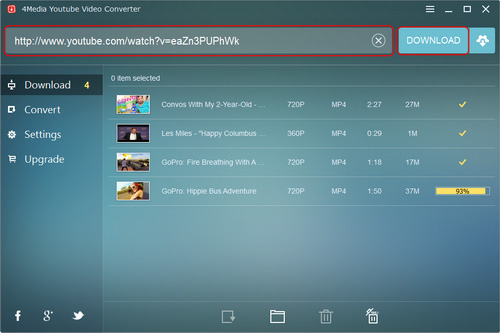
2. Click Download button to download the video.
It allows to view file name, resolution, format, duration, size and status in the task list. After the downloading is complete, click the "Open File Folder" to view the downloads.
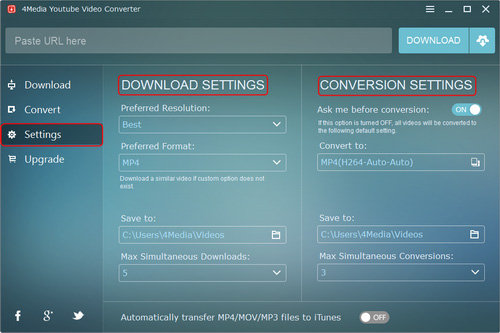
Tip: You can see the default preferred settings on the "Settings" panel. And you can set the resolution and format as you want before downloading. In addition, you could change the destination path and "Max Simultaneous Downloads".
Part2: Download YouTube video with custom settings
This program allows you to customize the resolution and format of the video when downloading.
1. Paste YouTube URL to the input box.
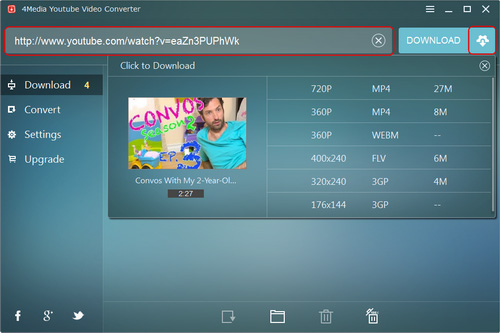
2. Click "Advanced Download Settings" button to set the video resolution and format.
The program will offer several resolution and formats according to the source file, and you can choose one to download the video.
Part3: Convert the downloaded YouTube video
After the download is complete, click the "Convert" button on the right of the video thumbnail to convert the video to other video/audio formats or devices.
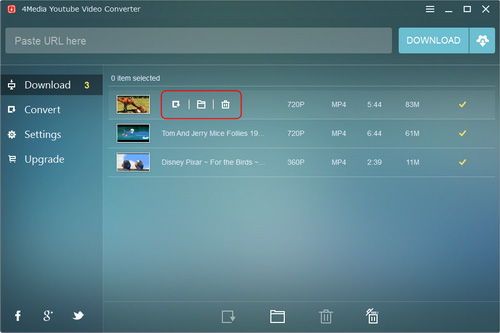
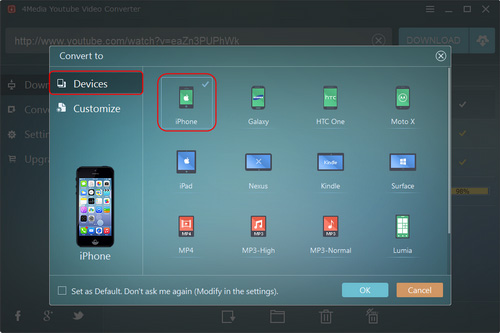
The program supports iPhone, Galaxy, HTC One, Moto X, iPad, Nexus, Kindle, Surface, Lumia, BlackBerry etc.
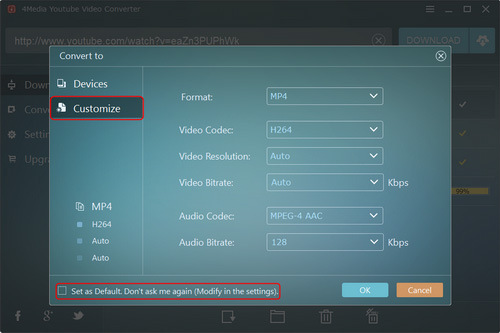
It enables you to customize the format from MP4, MKV, WMV, AVI, MOV, MPG, FLV, RM, MP3, M4A, WAV, FLAC. You could also customize the video codec, video resolution and video bit rate. After settings, click OK button to convert the video.
You could view the status of the conversion. After conversion, click "Open Folder" to find the converted file.

Featured Guides
Guides Categories
Video/Audio Guides
- 4Media Audio Converter Pro Tutorial
- 4Media Movie Editor 6 Tutorial
- Video Converter Ultimate Tutorial
- How to convert DAT to other videos
DVD/CD/Blu-Ray Guides
- 4Media Blu Ray Converter for Mac Tutorial
- How to convert Blu-ray disc to video files
- How to burn AVI, MPEG, VOB, DAT, M2V, MPG to DVD on Mac
- How to burn DivX to DVD on Mac
iPod Guides
- 4Media iPod Max Guide
- How to convert AVI, MPEG to iPod MP4 format
- Guide: 4Media iPod to PC Transfer
- How to convert DVD to iPod on Mac
iPhone Guides
- 4Media iPhone Contacts Transfer for Mac Tutorial
- 4Media iPhone Contacts Transfer Tutorial
- 4Media iPhone Ringtone Maker for Mac Tutorial
- 4Media iPhone Max Guide
iPad Guides
Youtube/Online Video Guides
- 4Media Online Video Converter for Mac Guide
- 4Media Online Video Downloader for Mac Guide
- 4Media Online Video Converter Guide
- 4Media Online Video Downloader Guide
PPT/PDF Guides
Others
Articles
- How to download YouTube videos for free
- How to download/convert YouTube videos to iPod
- How to download and convert YouTube videos
- All features of apple iPhone
- Now you can get more TV offerings from Apple iTunes
- Video Streamer HAVA from Snappy Multimedia
- iPod Growth Driving Demand for Flash Memory
- MediaMan HVX-3500 Review
- Uncertain whether new iPod will be delayed or not because of hurdles
- T3's top five iPod alternatives
- Envivio Exhibits MPEG-4 Solutions from Mobile to HD at CCBN2006