


Guide: 4Media Video Converter Ultimate Tutorial
How to convert video files using this video converter? The following will show you a step-by-step guide to complete conversion tasks. 4Media Video Converter can convert all SD/HD/3D videos, and audios. It can convert videos to be playable on wide range of digital devices including iPad, iPod, iPhone 4, iPhone 4S, Apple TV, PSP, PS3, Zune, smart Phones and any other portable multimedia devices.
It can also edit videos: merge/crop/clip videos; adjust video colors and effects; add watermarks, subtitles and audio tracks and set video & audio parameters, etc.
This article includes 8 parts.
- Getting Started
- 3D Video Conversion
- Clip Video/Audio File
- Create Merged Item
- Edit Merged Video Item
- Edit Merged Picture Item
- Add and Edit Video Effects
- More Applied Skills
Firstly, download 4Media Video Converter Ultimate and then install and run it.
Getting Started
Step 1: Install and run the software
After installation, run the software. You can see the main interface as below.

Step 2:Add File
Click "Add File(s)" button on the toolbar or select "File> Add File(s)" on the main menu to load files.

Step 3:Select output format
Select the files need to be converted and click "Profile" button to select the output format in the drop-down list. Then click "Browse…" button to specify destination folder for saving output files.

Tips:
- We provide abundant profiles compatible with various popular devices . Especially all-around HD video formats are supported.
- Many options for you to choose. The "Recently Used" option can record your recent usages automatically and it is convenient to use them again.
- Search for the wanted profile quickly by entering the profile keyword in "Start Searching" textbox of the profile list.
Step 4: Convert
After selected output profile, you only need to check the files you want to convert in the file list and click "Convert Checked Item(s)" button on the toolbar to complete the task.

Ok, the above is the simplest function in conversion. We provide you more functions as below!
3D Video Conversion
Choose the file you want to convert in the file list, and Click "3D" button on the toolbar to enter "3D Conversion" window.
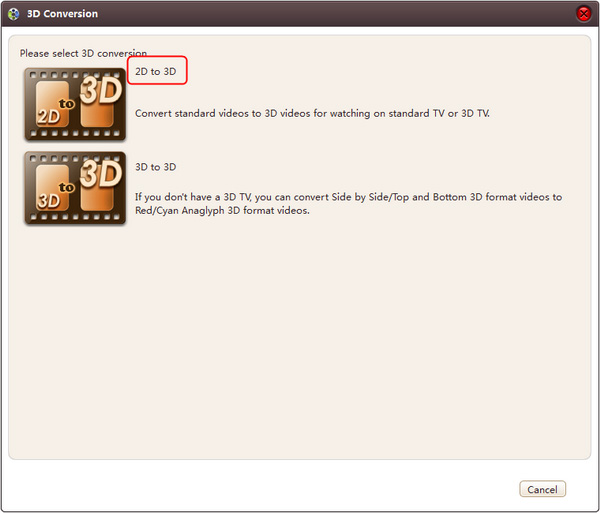
2D to 3D
You can convert 2D standard videos to 3D videos, and watch it on TV.
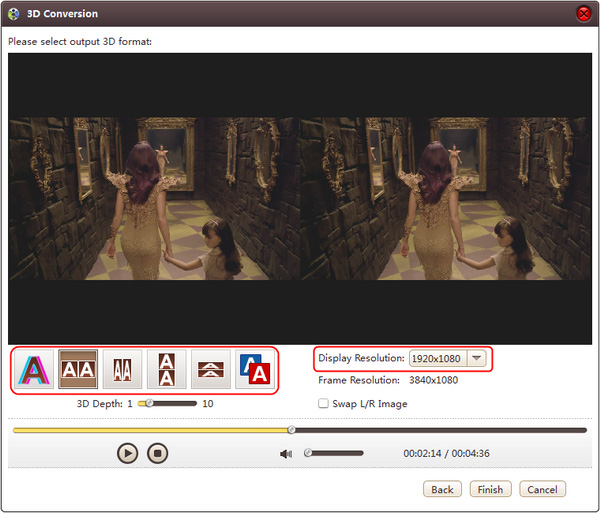
1. Click "2D to 3D" button to open settings interface.
2. Click "Anaglyph (Red/Cyan)", "Side by Side", "Side by Side (Half-Width)", "Top and Bottom" or "Top and Bottom (Half-Height)" under the preview area, select an output mode.
Tips:- (1) You can drag the "3D Depth" control slider to set the depth.
- (2) Check the "Swap L/R Image" option, you can switch left and right eye's image.
3. Click "Finish" to return to the main window.
3D to 3D
The software supports conversion between different 3D video format.
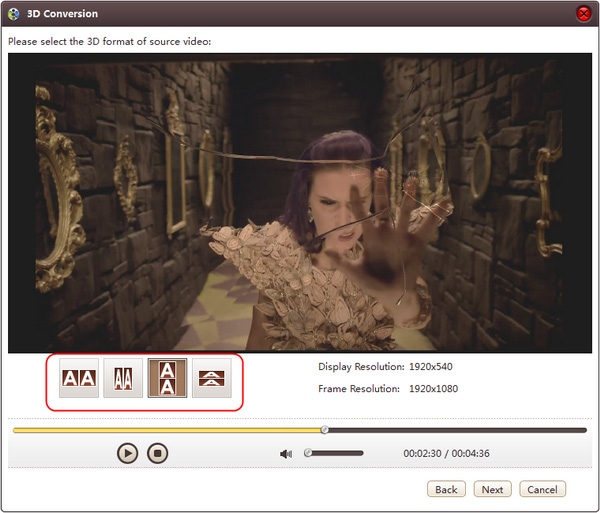
4. Click "3D to 3D" button to open settings interface.
5. Click "Side by Side", "Side by Side (Half-Width)", "Top and Bottom" or "Top and Bottom (Half-Height)" under the preview area, select a source mode.
6. Click "Next" button to return to next step.
Click "Anaglyph (Red/Cyan)", "Side by Side", "Side by Side (Half-Width)", "Top and Bottom" or "Top and Bottom (Half-Height)"
under the preview area, select an output mode.
Tip: Check the "Swap L/R Image" option, you can switch left and right eye's image.
7. Click "Back" to return to previous step. If you click "Remove 3D Conversion Settings", then the 3D conversion will be removed.
8. Click "Finish" to return to the main window.
Clip Video/Audio Files
At first, choose the video file you want to clip. Then click "Clip" button on the toolbar to enter "Clip" window. Set the start & end point to get the partial segment and repeat the action to get several segments at will. After clipping, check the "Output segments as a whole one" option and merge the segments in the list into one file. And then click "Move Up" or "Move Down" button to specify the sequence of these segments.
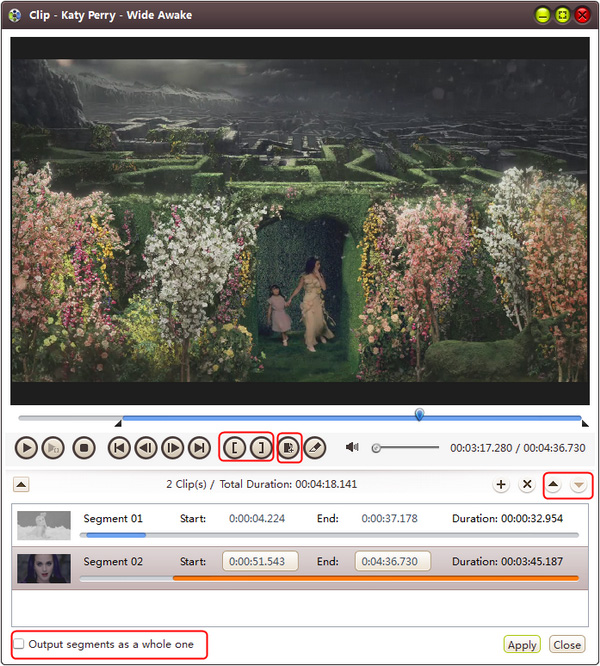
Create Merged Item
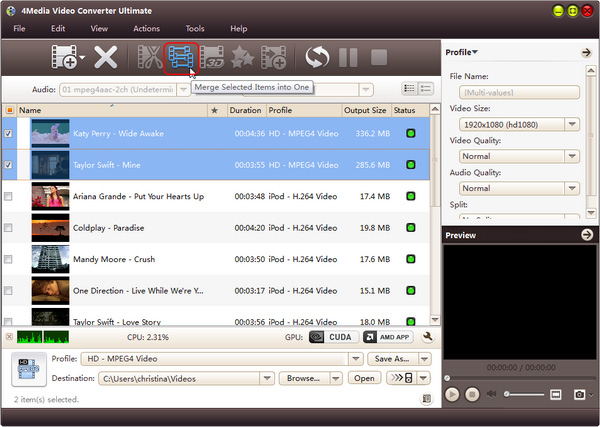
Select multiple files and click “Merge Selected Item into One” button on the toolbar to merge the selected files into one and create a merged item in the file list.
Tip: Only the files of same kind can be merged. E.g. video files cannot be merged with pictures.
Edit Merged Video Item
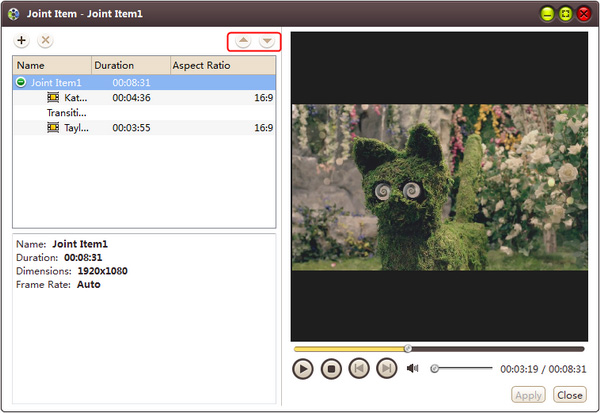
Firstly, right-click a merged video item in the file list, and select “Edit Joint Item” option from the right-click menu to open “Joint Item” window. Then select a video transition item and choose a transition effect from the transition panel on the left. Repeat this step to add transition effects to other videos. After adding transitions, choose a time length from “Duration” drop-down list as the transitional duration, and use “Move Up” or “Move Down” option to adjust the order of video items.
Tips:
- From “Setting” drop-down list, choose “Restore Defaults” to restore the default. Or select “Apple to All Transitions” to apple the above settings to all the sub-items in this joint item.
- On the right preview panel, click “Play” button to preview the merged items with the added transitions.
Edit Merged Picture Item
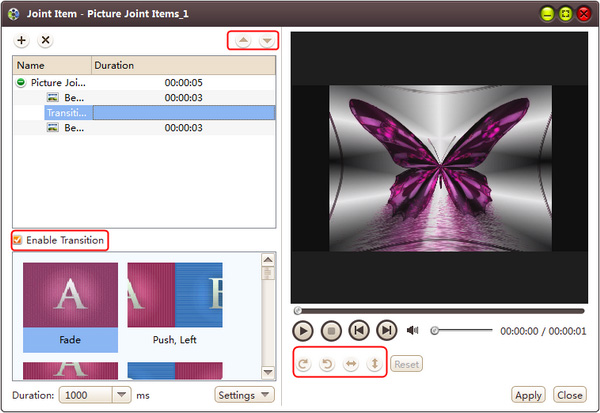
Right-click a merged picture item in the file list and choose "Edit Joint Item" option from the right-click menu to open " Joint Item" window. Choose a picture item and set the picture's direction by clicking "Rotate Clockwise", "Rotate Counterclockwise", "Flip Horizontal" or " Flip Vertical" button on the top right settings panel. Then you can adjust the order of the picture items by clicking "Move Up" or "Move Down" button, and click "Reset" button to reset all the settings to default.
You can also add transition effects for each picture item and choose a time length as the transition duration like what you have done in “Edit Merged Video Item” part.
Add and Edit Video Effects
Firstly, choose the video you want to edit, and then click “Effects” button on the toolbar to enter “Effects” window.
Crop the video size
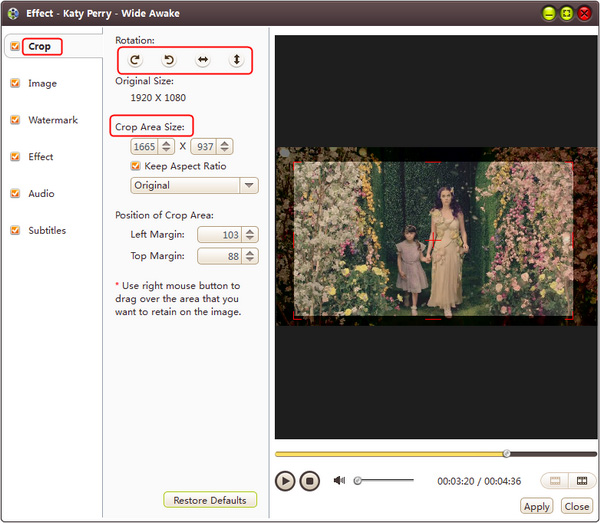
On “Crop” tab, enter height, width, left margin and top margin values to set the size and the position of the crop area. You can also adjust the crop area size and position by dragging the resizable handle and frame.
Besides, you can also check “Keep Aspect Ratio” option and choose the aspect ratio from the drop-down list. Click “Restore Defaults” to restore all settings to default, and preview the real-time effect in preview window on the right.
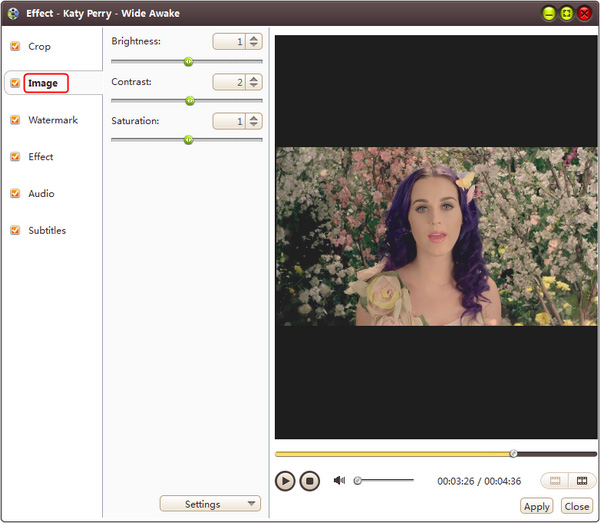
Edit video image
On “Image” tab, enter the value of the brightness/contrast/saturation in corresponding textboxes to set the video image’s brightness/contrast/saturation.
Add watermarks to video
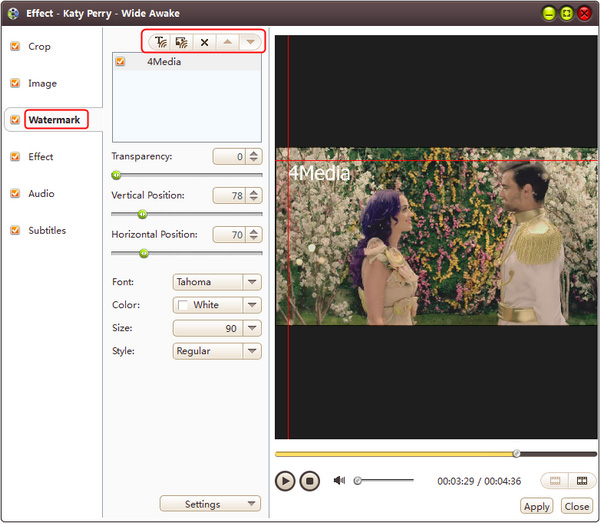
In “Watermark” tab, click “Add Text Watermark” or “Add Picture Watermark” button to import watermarks into the watermark list. Select a watermark and setransparency, vertical position, horizontal position, font, color, size or style.
Tip: You can add multiple picture and text watermarks into one video simultaneously.
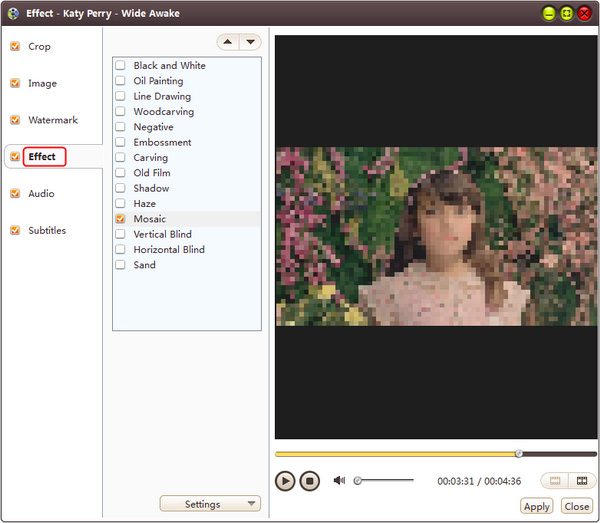
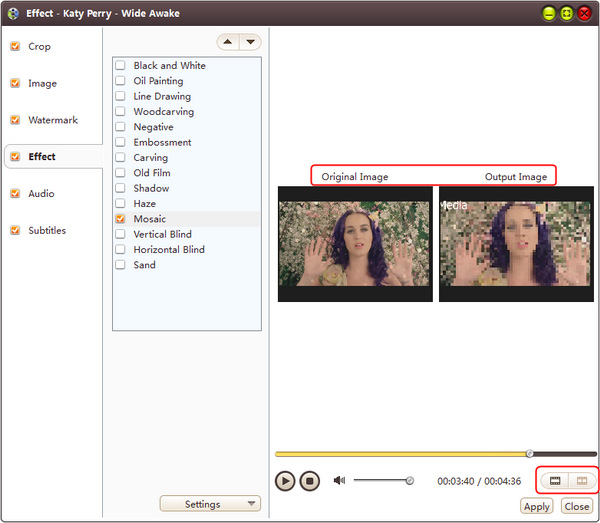
Add Effect to video
In "Effect" tab, choose one or more effects for the output video from the effect list.
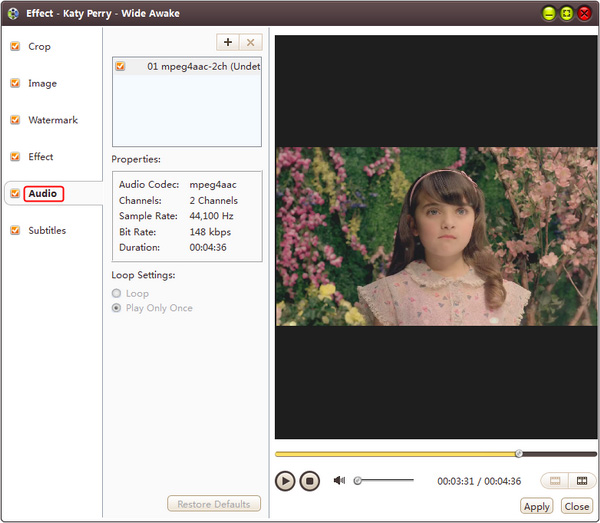
Add background music to video
In “Audio” tab, click “Add Audio Track” button to add audio tracks into the list. And then choose the wanted one from the list as the background music for the video. You can also set the play mode as “Loop” or “Play Only Once”.
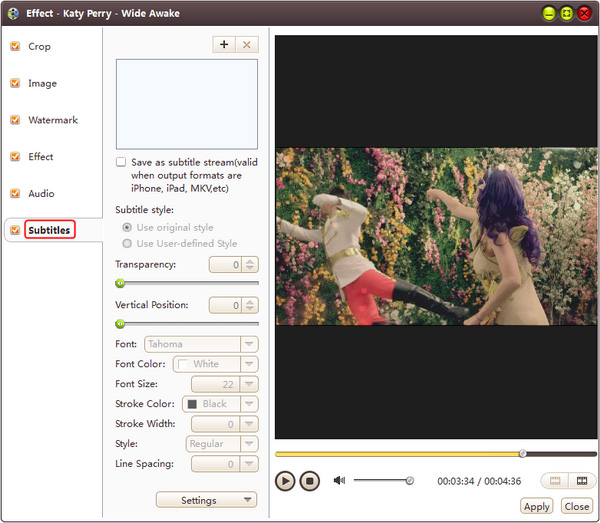
Add and adjust subtitle to video
In “Subtitle” tab, click “Add Subtitles” button to load the desired subtitles into the list. Then select a subtitle from the list and adjust its transparency, vertical position, font, color, size, style and line spacing at will.
Compare the edited video with the source one
Click “Comparing Preview” button on the right preview panel to compare the edited file with the source.
More Applied Functions
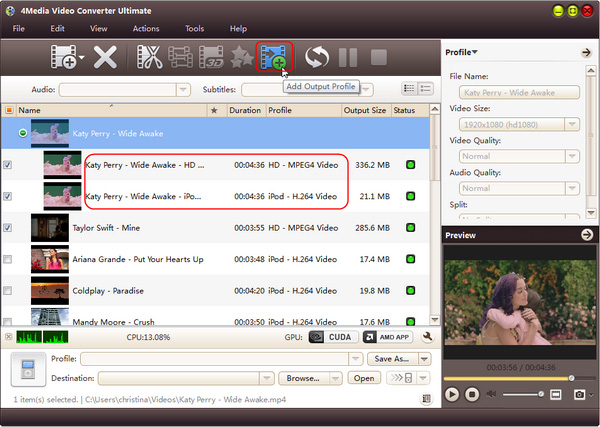
Add profiles for the same video file
Select the video and click "Add Output Profile" button to set multiple output formats for one file simultaneously. You can get different video formats for various digital players after conversion.
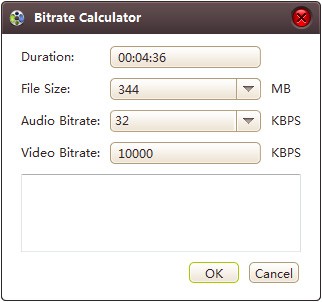
Gain exact video file size using bitrate calculator
To custom output size, select the video file and click Tools >Bitrate Calculator and input value to get exact video size.
Divers parameters for you to choose
Firstly, click Tools >Preferences to set various parameters such as amount of running processed, action "After Done" and etc.
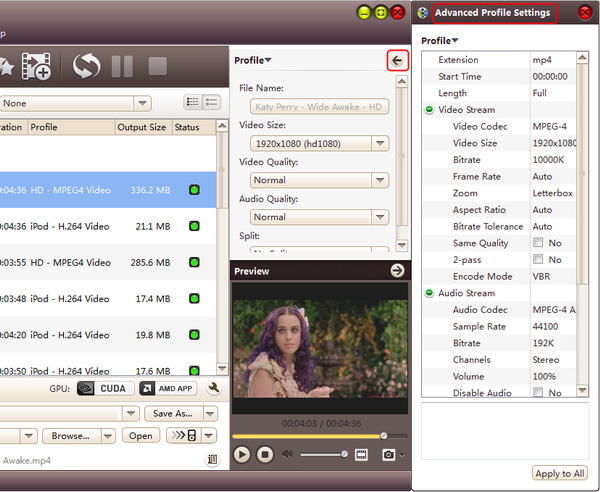
You can also click the "Advanced Profile Settings" button on the top right panel and adjust various video/audio parameters for more needs.
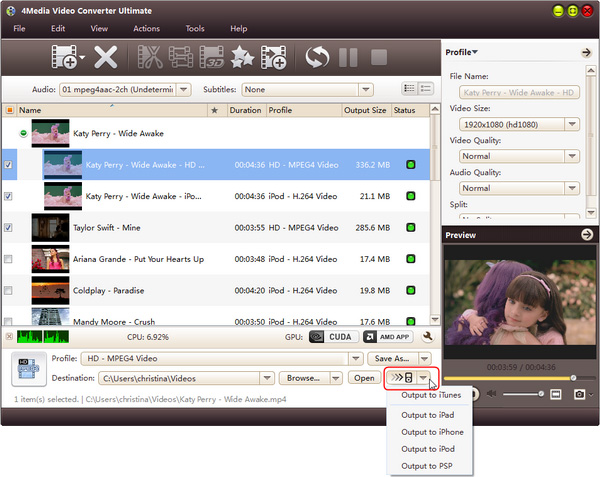
Directly transfer converted files to devices
You can transfer converted files to iTunes, iPad, iPhone, iPod, and PSP directly by 4Media Video Converter.
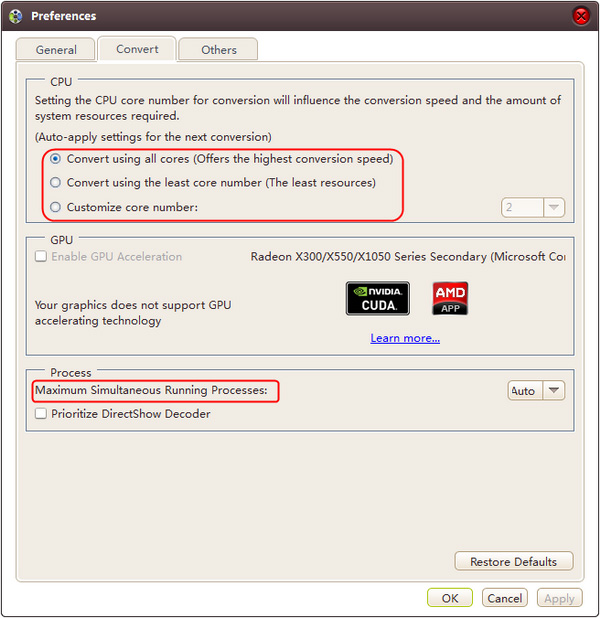
High Speed with Support for Multi-Core CPU
Supports multi-core CPU processing and offers the highest possible speed to convert video files.
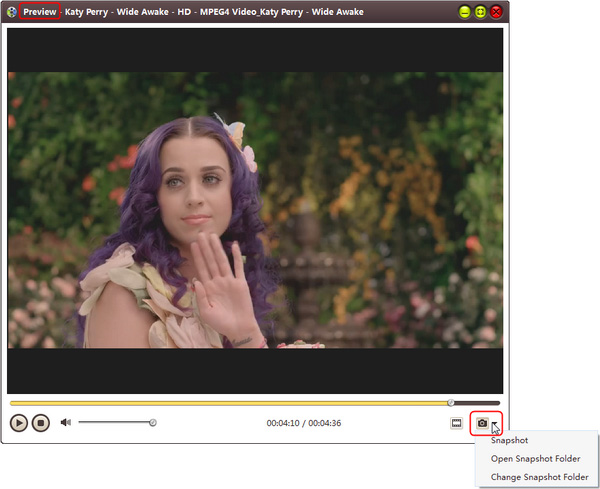
Preview and take snapshot
Preview the original and the edited video with effects added in two preview windows abreast for easy comparison. And also you can take snapshots.

Featured Guides
Guides Categories
Video/Audio Guides
- 4Media Audio Converter Pro Tutorial
- 4Media Movie Editor 6 Tutorial
- Video Converter Ultimate Tutorial
- How to convert DAT to other videos
DVD/CD/Blu-Ray Guides
- 4Media Blu Ray Converter for Mac Tutorial
- How to convert Blu-ray disc to video files
- How to burn AVI, MPEG, VOB, DAT, M2V, MPG to DVD on Mac
- How to burn DivX to DVD on Mac
iPod Guides
- 4Media iPod Max Guide
- How to convert AVI, MPEG to iPod MP4 format
- Guide: 4Media iPod to PC Transfer
- How to convert DVD to iPod on Mac
iPhone Guides
- 4Media iPhone Contacts Transfer for Mac Tutorial
- 4Media iPhone Contacts Transfer Tutorial
- 4Media iPhone Ringtone Maker for Mac Tutorial
- 4Media iPhone Max Guide
iPad Guides
Youtube/Online Video Guides
- 4Media Online Video Converter for Mac Guide
- 4Media Online Video Downloader for Mac Guide
- 4Media Online Video Converter Guide
- 4Media Online Video Downloader Guide
PPT/PDF Guides
Others
Articles
- How to download YouTube videos for free
- How to download/convert YouTube videos to iPod
- How to download and convert YouTube videos
- All features of apple iPhone
- Now you can get more TV offerings from Apple iTunes
- Video Streamer HAVA from Snappy Multimedia
- iPod Growth Driving Demand for Flash Memory
- MediaMan HVX-3500 Review
- Uncertain whether new iPod will be delayed or not because of hurdles
- T3's top five iPod alternatives
- Envivio Exhibits MPEG-4 Solutions from Mobile to HD at CCBN2006