


4Media iPhone Ringtone Maker Tutorial


The guide will explain to you how to make iPhone ringtones from any video/audio files and how to transfer iphone ringtones.
Firstly, download iPhone Ringtone Maker, install and launch the software.
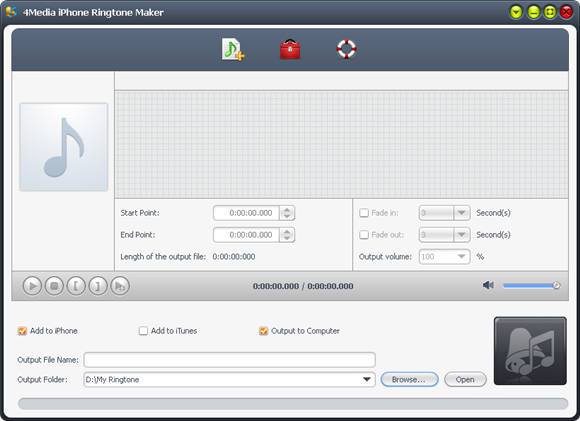
Step 1: Load a video/audio file
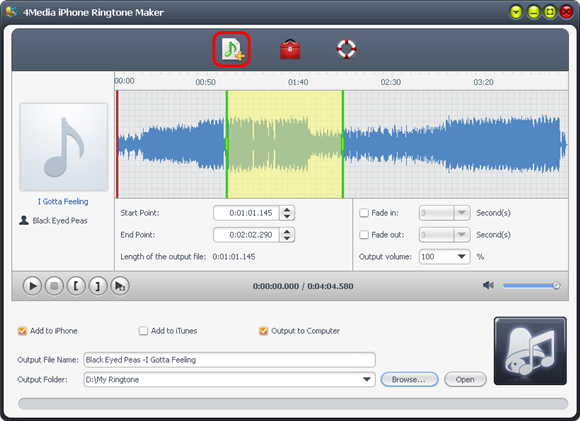
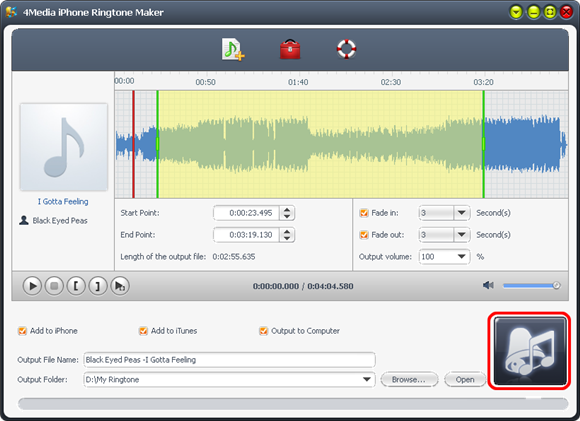
Click the "Select file(s)" button on the toolbar to select the file you want to create ringtone in the dialog that pops up, then click "Open" button. You can see the audio waveform in the grid area.
Step 2: Adjust the output settings
Enter the name in the "Output File Name" textbox or keep the original name, and click "Browse…" button on the right side of the "Output Folder" to choose a folder for saving the outputted ringtones.
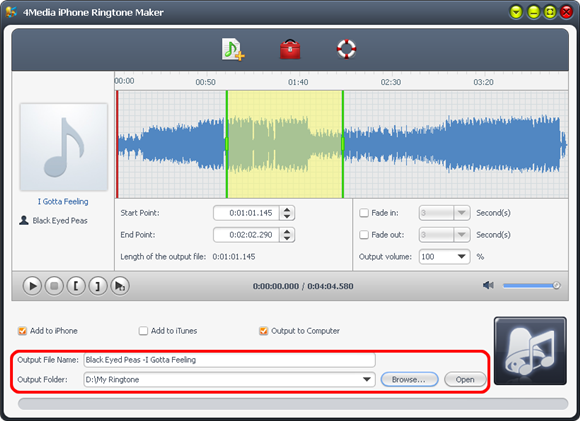
Tip: After making iphone ringtone, you can click "Open" button to view the ringtone directly.
Step 3: Customize the ringtone (optional)
1. Extract a clip
Click "Play" button to listen the music and find the part you want. Drag and drop the start & end line to get a music clip, or click "Set the current time as the start point" and " Set the current time as the end point " buttons to extract a clip, or type the start & end time directly in the corresponding text boxes.
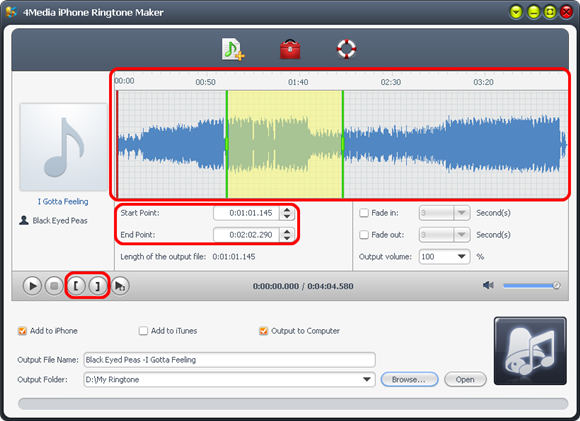
Tip: The red line is "current time" in the grid area, you can set the exact position of the red line according to actual need.
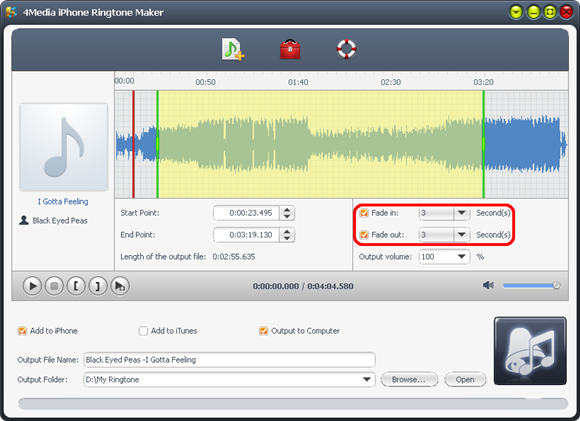
2. Add fade-in and fade-out effects
Check the "Fade in" and "Fade out" checkboxes, and set the fade-in and fade-out time according to your need.
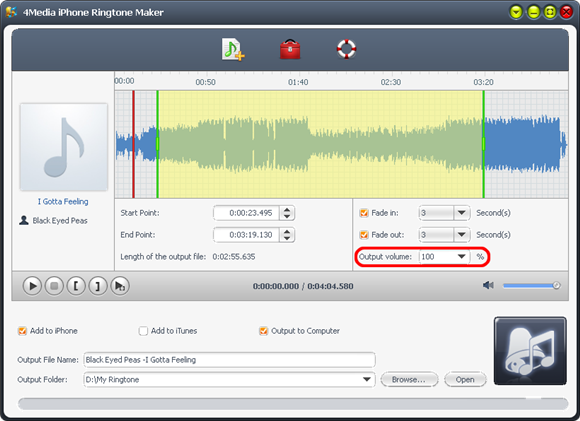
3. Adjust ringtone volume
Click "Output volume" drop-down button to set the ringtone volume freely.
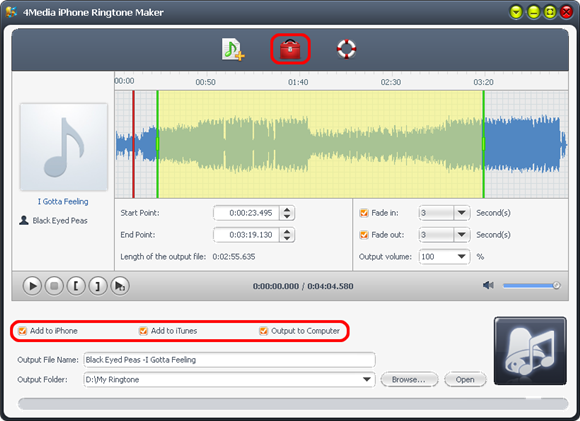
Step 4: Adjust the file transfer settings
If you want, check "Add to iTunes" and "Add to iPhone" options to let the program upload the ringtone to iTunes and your iPhone directly after conversion.
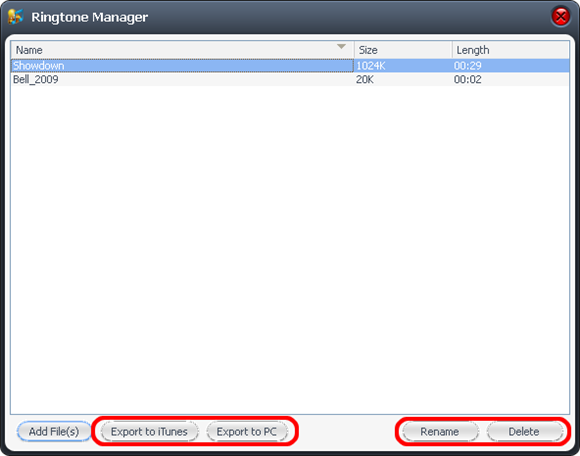
Click "Ringtone Manager" button on the toolbar to manage all the ringtones you uploaded to iPhone in the "Ringtone Manager" dialog that opens.
Choose an audio file in the file list, click "Export to iTunes" or "Export to PC" button to exporting files. You can also click "Rename" button to rename the audio file.
Step 5: Start making ringtone
After all above are finished, click "Start Converting" button to start to make your own iPhone ringtone. You can check the converting process from the progress bar at the bottom. Just in a few minutes, you make your own iPhone ringtones from the loved music.

Featured Guides
Guides Categories
Video/Audio Guides
- 4Media Audio Converter Pro Tutorial
- 4Media Movie Editor 6 Tutorial
- Video Converter Ultimate Tutorial
- How to convert DAT to other videos
DVD/CD/Blu-Ray Guides
- 4Media Blu Ray Converter for Mac Tutorial
- How to convert Blu-ray disc to video files
- How to burn AVI, MPEG, VOB, DAT, M2V, MPG to DVD on Mac
- How to burn DivX to DVD on Mac
iPod Guides
- 4Media iPod Max Guide
- How to convert AVI, MPEG to iPod MP4 format
- Guide: 4Media iPod to PC Transfer
- How to convert DVD to iPod on Mac
iPhone Guides
- 4Media iPhone Contacts Transfer for Mac Tutorial
- 4Media iPhone Contacts Transfer Tutorial
- 4Media iPhone Ringtone Maker for Mac Tutorial
- 4Media iPhone Max Guide
iPad Guides
Youtube/Online Video Guides
- 4Media Online Video Converter for Mac Guide
- 4Media Online Video Downloader for Mac Guide
- 4Media Online Video Converter Guide
- 4Media Online Video Downloader Guide
PPT/PDF Guides
Others
Articles
- How to download YouTube videos for free
- How to download/convert YouTube videos to iPod
- How to download and convert YouTube videos
- All features of apple iPhone
- Now you can get more TV offerings from Apple iTunes
- Video Streamer HAVA from Snappy Multimedia
- iPod Growth Driving Demand for Flash Memory
- MediaMan HVX-3500 Review
- Uncertain whether new iPod will be delayed or not because of hurdles
- T3's top five iPod alternatives
- Envivio Exhibits MPEG-4 Solutions from Mobile to HD at CCBN2006