


How to convert AVCHD to MOV

AVCHD (Advanced Video Codec High Definition) is a format developed by Sony and Panasonic video cameras. Usually, we need to convert such AVCHD video to another format in order to view the clips on PC or other devices. How to convert AVCHD videos to MOV files and watch them via QuickTime? 4Media HD Video Converter provides a fast and easy way. Here is the step-by-step guide.
Free Download 4Media HD Video Converter and install it.
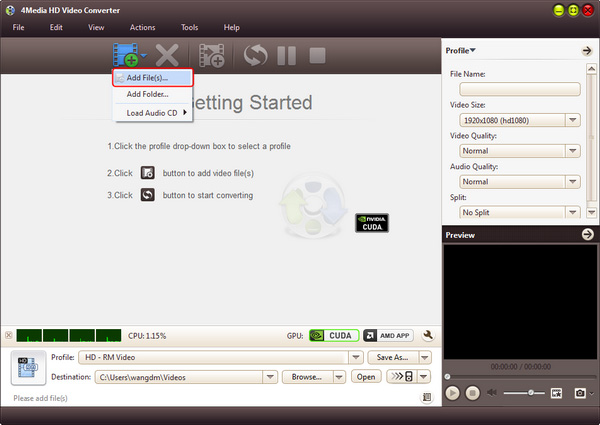
Step 1: Add the AVCHD files you want to convert
As the picture below shows, click the "Add Files" button to browse your computer and load the AVCHD video(s) you need to convert.
Step 2: Set output format as "MOV"
In the profile drop down list, choose "MOV - QuickTime Video (*.mov)" format " in "General Video" category as output format. And, if you'd like to convert AVCHD to HD MOV, you can choose "HD MOV Video (*.mov)" in HD
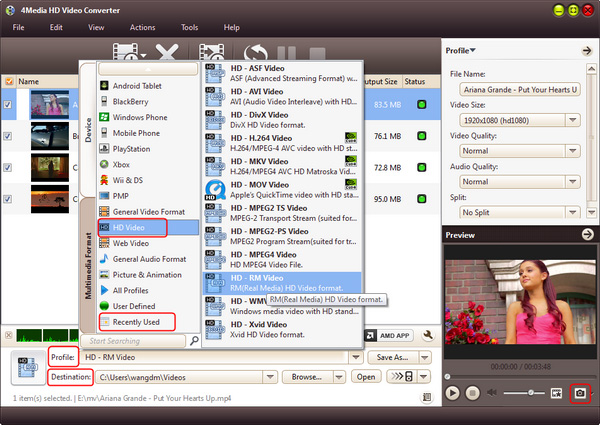
To set the destination folder yourself, you can click "Browse" button and choose a destination folder. To get customized videos, set the parameters including Video Size, Video Quality, Channels, etc. in Profile Settings panel.
Step 3: Start the conversion
Hit the "convert" button on tool bar to start the AVCHD to MOV conversion.
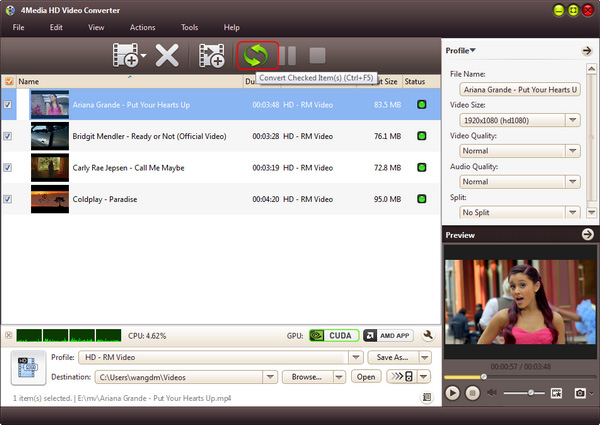
Wait for a few minutes, all the AVCHD videos would be turned to MOV formats. Click "Open" button to open the files and play them with QuickTime player!
With this tool, you also can convert your AVCHD video to other formats, such as HD WMV, HD AVI, H.264/AVC, etc. Get more about 4Media HD Video Converter.
Knowledge:
What's AVCHD
The "AVCHD" is a brand new high definition (HD) digital video camera recorder format recording 1080i*1 and 720p*2 signals onto certain media by using highly efficient codec technologies. The "AVCHD" is jointly established by Panasonic, the brand name for which Matsushita Electric Industrial Co., Ltd. is known and Sony Corporation.
