How to download YouTube video to PSP

Watch YouTube videos on your PSP? 4Media YouTube Video Converter would lend you a hand. The YouTube converter combines downloading and converting YouTube videos in one step. So you can directly download YouTube videos for playing on iPad, iPhone, Apple TV, PSP, PS3, Zune and other mobile phone offline.
Before starting, please download and install the YouTube to PSP downloader firstly.
Follow this link to free download 4Media YouTube Video Converter.
Launch the software, and you will see the software interface as picture below.
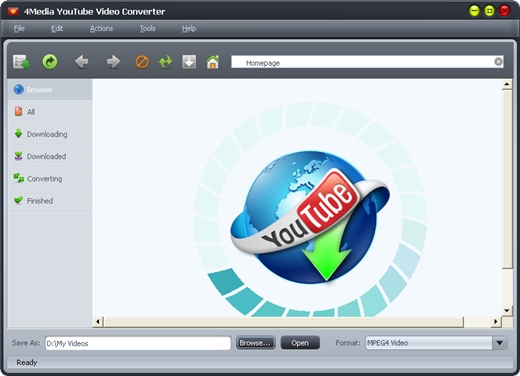
4Media YouTube Video Converter offers many ways to download+convert YouTube videos. You can choose one from options below.
Method 1. Download+ convert YouTube video via right menu
Visit www.youtube.com with Internet Explorer browser and browse your favorite YouTube videos. Right click the YouTube video thumbnail or URL, and select "Download with 4Media YouTub" option from the right-click menu to open the New Download Task.
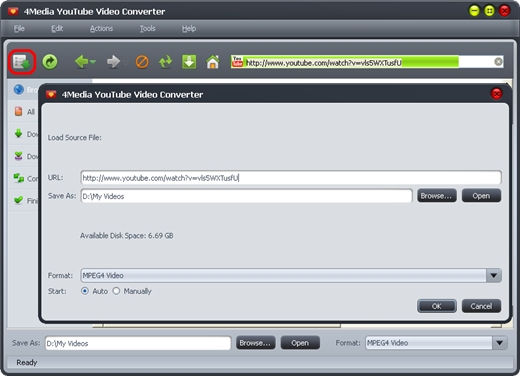
In the New Download dialog, you can set the destination folder and choose the output format. Here, you need to choose "PSP H.264 Video" or "MPEG 4 Video". Then you can start to download+convert.
Method 2. Drop the video URL to software windowJust drag and drop the YouTube video URL directly to 4Media YouTube Video Converter to create a New Download task as method 1.
Set output format as "PSP H.264 Video" or "MPEG 4 Video". Then start to download+convert.
Method 3. Past the URL to New Download task dialog
Click "New Download" button on the toolbar to open the "New Download" dialog, and copy the URL of the YouTube video you want, then paste it into the "URL" textbox. Set output format as "PSP H.264 Video" or "MPEG 4 Video". Then start to download+convert.
Tips:
1. Download+Convert YouTube to PSP in batch
.In New Download dialog, the "Start Now" option is selected by default. If you don't want to start the new task promptly, then set the option as "Manual". And then you can choose more videos to download+convert at the same time. Surely, in this process, you can manage each downloading task at will.
2. Download via Proxy server setting
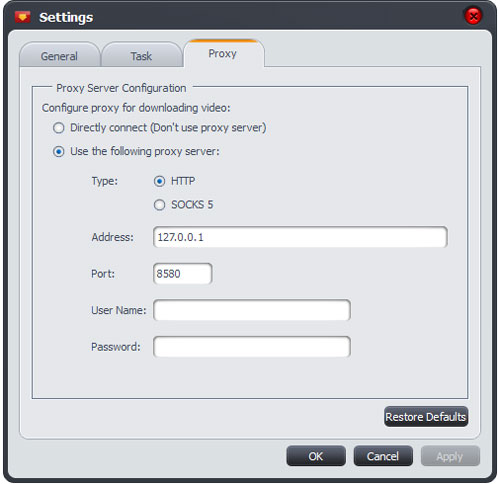
If your Internet Service Provider blocked YouTube site, you can bypass the firewall by setting the proxy server as below: Open the "Tools > Settings > Proxy" tab, choose the proxy server type, enter the address and port of the proxy server, and if necessary, enter the user name and password, then click "OK" button to return to the main window and retry the downloading.