


How to convert VOB files to DVD

Some people asked me why they could not copy VOB file directly to DVD and play the disc on DVD player. In most instances, they got error messages on the player. Some added that they could play the same DVD on PC. Actually, the problem is not complicated. If you copy videos directly to DVD disc, it will be burnt as data DVD. Most DVD player only can support video DVD, not data DVD. How to burn VOB files into a DVD and play on DVD player? To solve the problem, please follow this guide. And 4Media DVD Creator, a powerful VOB to DVD burner, is your best choice.
Free Download 4Media DVD Creator, and install it.
Launch the 4Media DVD Creator and let's start the burning process. And surely, please make sure you have a blank DVD disc at hand. OK, here we go.
How to convert and burn VOB files to a DVD disc?
Step 1: Load the VOB file(s)
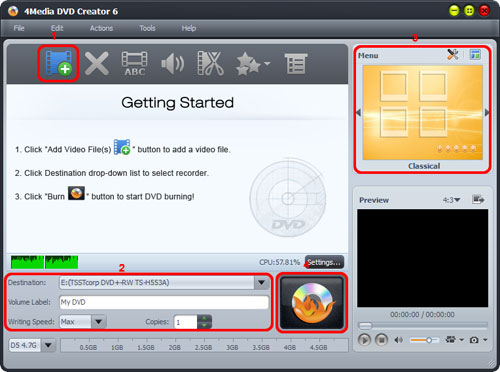
Click "Add Video File(s)" button on the toolbar and load the VOB file. To burn several videos(all .vob files or files with other formats) into a DVD movie, you can choose and add them all at the same time.
Step 2: DVD Output Settings
You can adjust the output settings including "Destination", "DVD name", "Writing Speed", "Copies" yourself.
- Destination: Insert the recordable disc you prepared, and choose the disc you insert from the "Destination" drop-down list. Surely, you can choose "Save as DVD Folder" or "Save as Image (.iso)" option if you would like to back up the VOB files onto your hard disk as DVD folder or ISO image.
- DVD Name: Enter a name in the textbox as the DVD name.
- Writing Speed: According to your CPU configuration, choose an appropriate speed from the drop-down list.
- Copies: Click the up and down arrows to set the number of copies you want to burn. If you set it to more than 1, the program will prompt you to insert a new recordable disc after burning a copy.
Step 3: Create and edit DVD menu
To create a DVD menu, please choose a menu template firstly: Click "Templates" button on the menu panel, "Menu Templates" window pops up. Choose your favorite template from this window to create a menu instantly.
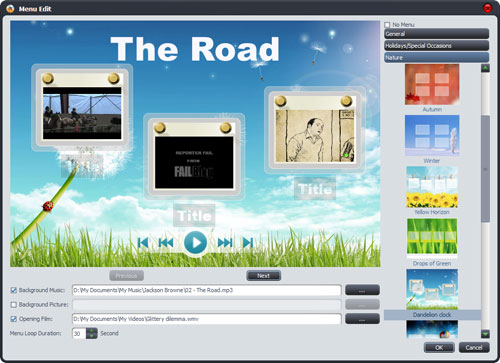
To further edit the menu, just click "Edit" button and in "Menu Edit" window where you can change another template, add background music/picture, and specify title and opening film to the menu.
Step 4: Add and edit DVD subtitle and audio track
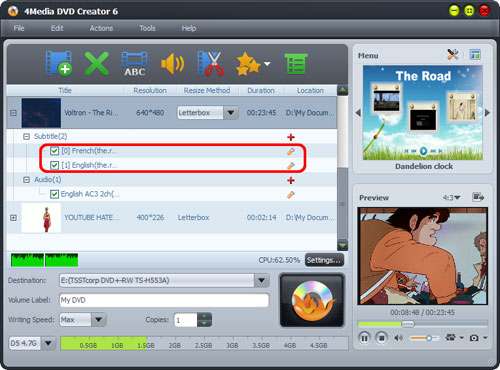
After loading the files, the VOB to DVD burner will display its subtitle item and audio track item under the file node in the file list.
Click the yellow "Settings" button, you can edit the existed subtitle; and to add a new subtitle, just click the red "Add" button.
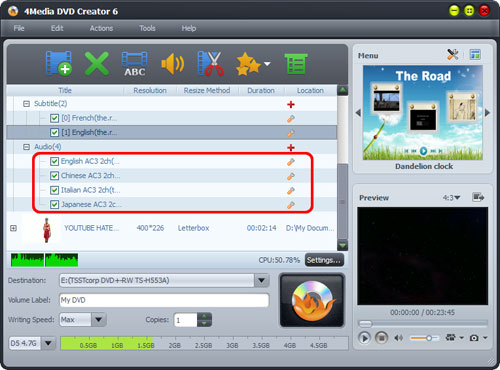
To add and adjust the audio track: Click the yellow "Settings" button to adjust the title; click the red "Add" button to add a new audio track.
Step5: Start burning VOB to DVD
Click the big "Burn" button at the right bottom to start the VOB to DVD burning. The burning process would be finished in a short time. Then you can enjoy the ready DVD on a DVD player!
With 4Media DVD creator, you can convert most video files to DVD disc with high quality. What's more, you can easily burn a DVD movie with specific DVD menu, clip video to reserve the essential clips, crop video frame size, adjust video effect, add watermark, and set audio tracks and subtitles - all to ensure you burn a prefect movie DVD from VOB files.
