


How to convert songs to iPhone ringtone
No need to pay $1.98 for each ringtone from Apple Store, 4Media iPhone ringtone maker helps you convert all you loved songs to iPhone ringtone format. With this iPhone ringtone converter, you can create your own iPhone ringtone from any videos and audios, and customize the ringtone and auto transfer the converted ringtones to your iPhone. Let's see how to convert songs to iPhone ringtone step by step.
How to convert songs to iPhone ringtone?
Step1. Load the songs you like
Click the "Browse" button to load the songs on your computer into this songs to iPhone ringtone converter.
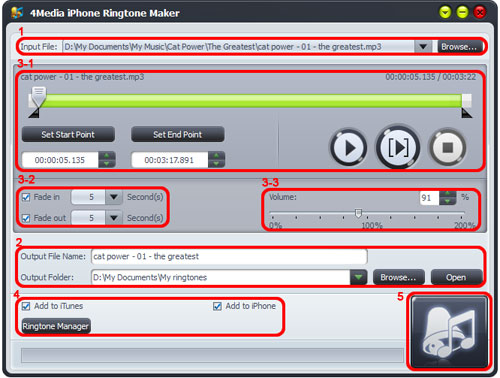
Step2. Specify the output file name and output folder
Set the target ringtone name and specify the file folder to save the ringtone on the computer. If you like, you can keep them as default settings.
Step3. Ringtone customization (optional)
3-1. Choose a segment from the song as ringtone
Click "Play" button to listen the MP3 and find the part you want. Drag and drop the start & end sliders to get a music clip, or click "Set Start Point" and "Set End Point" buttons to extract a clip when the player comes to the points you want, or type the start & end time directly in the corresponding text boxes.
3-2. Use the fade-in and fade-out effects
Check the "Fade in" and "Fade out" checkboxes, and set the fade-in and fade-out time according to your need.
3-3. Adjust the ringtone volume
Drag the volume slider to set the ringtone volume freely.
Step4. Preset to add ringtones to iTunes and iPhone
Before MP3 to iPhone ringtone converting, you can set "add to iTunes (If you have installed iTunes)" or "add to iPhone (Make sure you have connected your iPhone to computer)" option then transfer the finished ringtone to iTunes or iPhone directly.
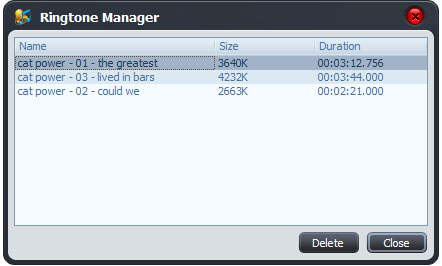
Also, you can click "Ringtone Manager" button to manage all the ringtones you uploaded to iPhone in the "Ringtone Manager" dialog.
Step5. Start music song to iPhone ringtone conversion
Click the conversion button to start converting songs to iPhone ringtone.
If you choose the "add to iPhone" option in step4, then the converted ringtone would auto be transferred to your iPhone directly when conversion finished.
Change your iPhone ringtone as you like using 4Media iPhone ringtone maker.
