


DVD to Video for Mac - Convert DVD to MOV Mac
Convert DVD to QuickTime MOV? For Mac users, you can try 4Media DVD Converter which can convert DVDs on Mac to most popular videos and audios. This guide will show you how to convert movie DVDs to MOV on a Mac computer.
Download and install the DVD Converter on your Mac, then let's start the conversion.
Step 1: Load your DVD
Launch the software, insert the DVD disk into your DVD-ROM, and click the "Add" button to load DVD disc. This time we take Hancock as an example.
As you see, the DVD Converter also supports DVD folder and ISO file as source files.
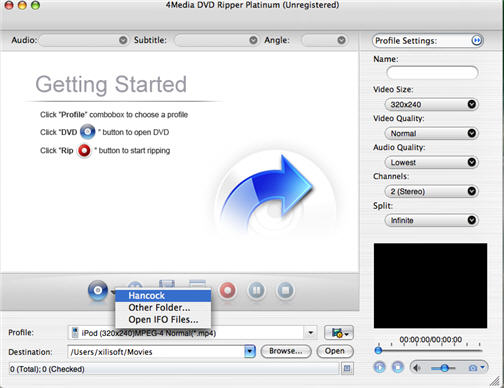
Step 2: Choose the MOV format from Profile list
Select the MOV - QuickTime(*.mov) profile in "Common Video" classification in the "Profile" drop-down list.
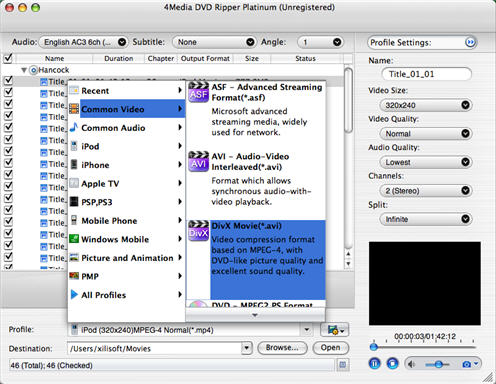
As you can see, the DVD Converter gives you the options to change the default DVD audio, subtitle, and angle for output format. Furthermore, in right profile setting panel you can set output video size, video quality, and channels to get specialized MOV video.
Step 3: Start DVD to MOV converting
After choosing the format, you just need to click "Convert" button on the toolbar to start the task.
As 4Media DVD to Video for Mac provides high conversion speed, you will see the conversion has been finished in just a few minutes. After conversion, you can just click the "Open" button to check the target MOV file conveniently.
