


How to Convert Blu-ray disc to DVD (VOB format)
Convert Blu-ray to DVD format (VOB)? You can give a try of 4Media Blu-ray to Video Converter. The Blu-ray converting software can help you convert Blu Ray discs to DVD (VOB format) and other popular SD/HD video formats.
First, let's check the System Requirement of the software:
| OS | Microsoft® Windows XP (SP2 or later), Windows Vista, Windows 7 Ready |
| Processor | 1GHz Intel/AMD processor or above |
| RAM | 256MB RAM (512MB or above recommended) |
| Free hard disk | 50MB space for installation |
| Graphic Card | Super VGA (800×600) resolution, 16-bit graphics card or higher |
| Others | BD-ROM; AnyDVD HD v6.5 or above; UDF2.5 Driver (for Windows XP only) |
You can free download 4Media Blu-ray to Video Converter
And click to get details about 4Media Blu-ray to Video Converter
How to convert Blu-ray to DVD (VOB format)?
Step1. Load the Blu-ray disc
Click Add Blu Ray Folder button as picture below, select a disc in the dialog box that opens, and load it. The Loaded disc information will be shown in the window of the Blu-ray Converter.
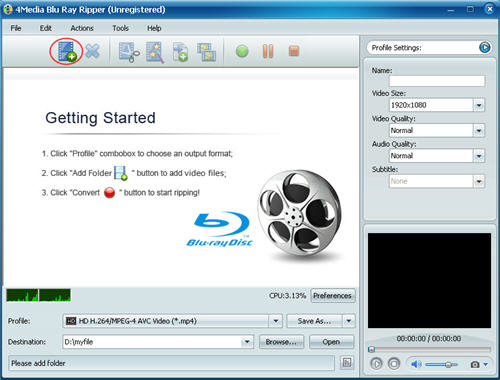
Step2. Set the output format
Choose the file in the disc, open Profile drop-down list, and select "DVD Video (*.vob)" in the "General Video" category.
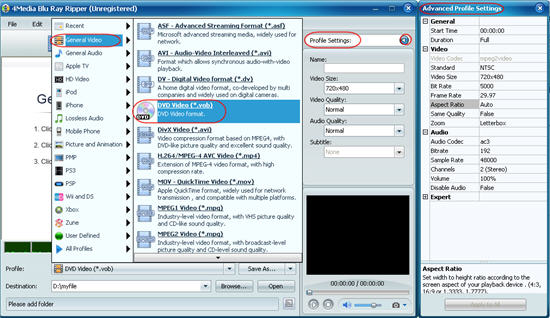
Furthermore, in the Blu Ray to DVD Converter, you can set output format video parameters yourself including "Video Quality", "Video Size", "Audio Codec" and more in right profile and Advanced profile settings tab.
Step3. Start the Blu-ray to DVD converting
When all is ready, click Convert Checked Item(s) button at the right bottom to start converting. When the conversion finished, the "completed" status will show. Then you can directly click Open button to check the converted VOB files.
4Media Blu-ray to Video Converter provides makes Blu-ray to DVD conversion easy to handle.
Free download to have a try:
Free Download 4Media Blu-ray to Video Converter.
