


How to convert Blu-ray to DivX format

Sometimes, people want to enjoy blu-ray movie on their media devices. So, they need to convert Blu-ray disc to video format which can be supported by media device, such as DivX. How to convert Blu-ray discs to DivX (AVI) format? You can take Blu-ray to Video Converter to serve you. As professional Blu-ray disc Converter, the software can convert Blu-ray to most popular video formats for many portable players with high quality. And in this guide we will teach you how to convert Blu-ray movies to DivX video using 4Media Blu-ray to Video Converter.
Free Download 4Media Blu-ray to Video Converter
How convert Blu-ray discs to DivX format step by step?
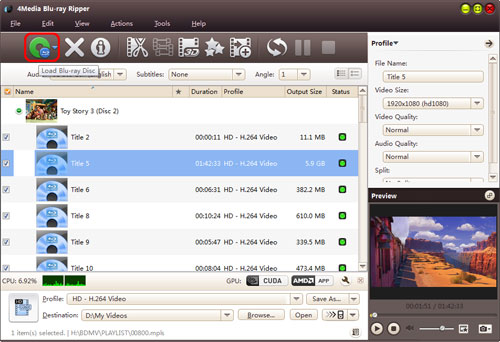
Step1. Load the Blu-ray disc
Click Add Blu Ray Folder button, select the discs in the dialog box, and load it. The Loaded disc information will be showed in the file list.
Step2. Select the output format as "DivX video (*.avi)"
Choose one or more files in the file list, and open Profile drop-down list, then select "DivX video (*.avi)" in the common category.
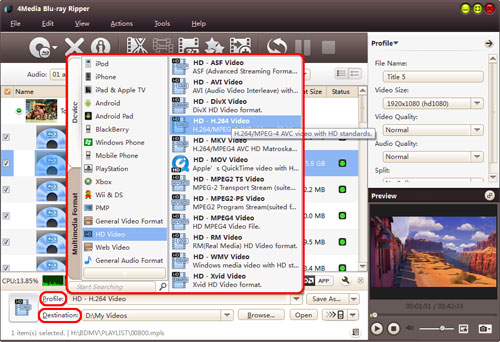
Tip: To adjust output settings, you can set the detailed parameters of output format in the profile panel of right window.
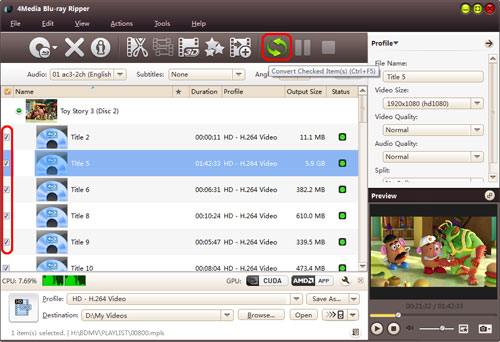
Step3. Click "Convert" to start the Blu-ray to DivX converting
After all the settings, just click "convert" button to start converting the files. And after a little while, the conversion would be finished and the "completed" status will show. This time you can directly click Open button to check the converted DivX files.
That's all. Just easy like a breeze. Besides, 4Media Blu-ray to Video Converter provides more features like video clip, crop, and video special effects to assist you get customized conversion. Try it yourself.
Free Download 4Media Blu-ray to Video Converter.
