


How to convert VOB to MP4 on Mac

How to convert VOB to MP4 format on Mac?
MP4 is the most popular video format for Mac users. When attempting to change VOB video to MP4, a video converter program is needed.4Media MP4 converter for Mac iis the best Mac VOB to MP4 converter which can convert VOB files to MP4 with high speed and great quality. What's amazing, the MP4 converter provides prepared MP4 format particularly for iPod, iPhone, PSP, PS3, and Apple TV.
Step1. Load the VOB file you'd like to convert
Click "Add File" button on tool bar to open the dialog, and browse your computer to choose the file you want to convert.
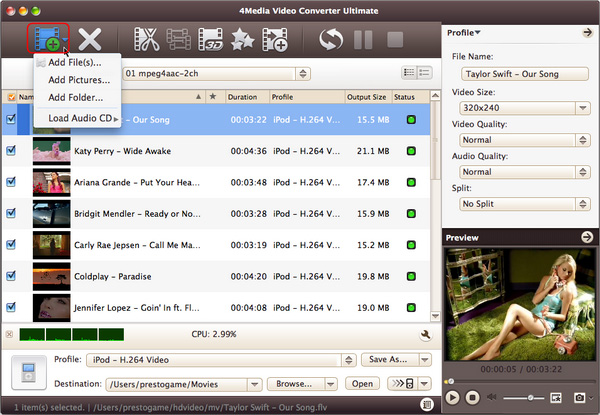
Step2. Set the output format
Open the Profile dropdown menu, select output format for your portable player or Mac player: Choose the general MP4 f isormat MP4-MPEG-4 Video (*.mp4)" or choose a particular MP4 format for iPod, iPhone, PSP, PS3, and Apple TV.
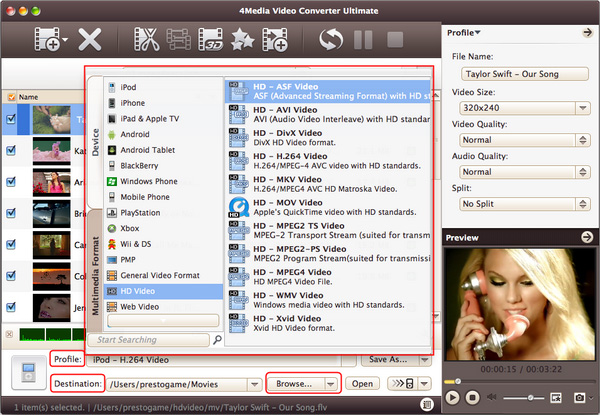
And in general and advanced setting panels, you can set format parameters yourself: Set Video Quality, Audio Quality, and more to customize the video.
Step3. Click "Convert" to start converting
Click "Convert" Button on the top of the main interface to start VOB to MP4 converting. After a few minutes, the info "Completed" will show. And this time, you can click the "Open" button to open the target file folder directly.
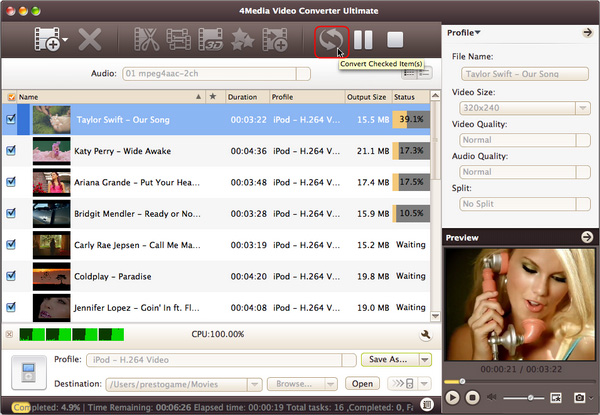
See? It's only 1-2-3 step to finish the VOB to MP4 conversion on Mac computer. Get more about the MP4 Converter.
