


Video Converter for Mac - Convert AVI to MPEG on Mac

AVI(Audio Video Interleave) file format has constant streaming pirctures and sound. It can be played by most Windows operated media players, but not widely used on MAC. However, MPEG is more compatible with Mac media players. How to convert AVI to MPEG on a Mac computer? When you have such a problem, you're right here to find the step-by-step guide with 4Media Video Converter for Mac.
Guide: How to convert AVI to MPEG format on a Mac
OK, first, make sure you have downloaded and installed the Mac video converter on your computer and launch it.
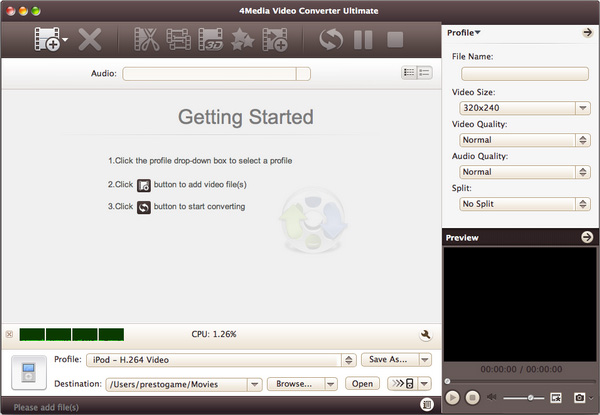
Now, let's start.
Step1. Click "Add File" button on the toolbar to load the AVI files you want to convert. Remember where you put it.
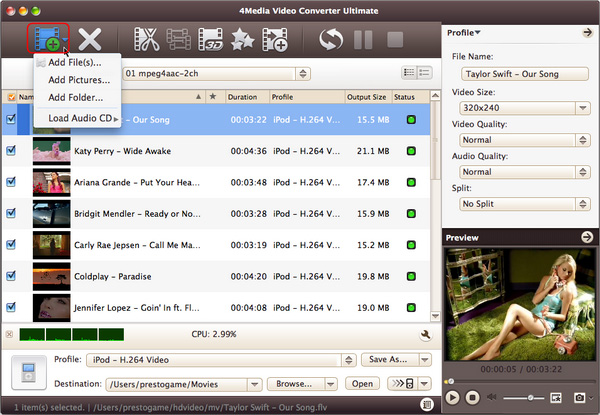
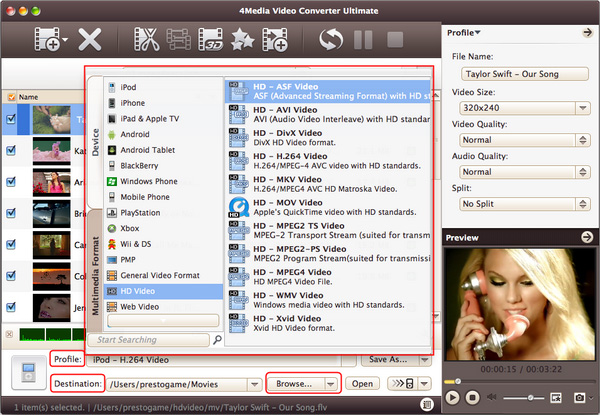
Step2. Choose "MPEG" format in "Common Video" classification in the "Profile" drop-down list.
Step3. Click "Browse" to set the target destination folder if you feel the default directory is not convenient.
Step4. All is ready, just click "Convert" button on the toolbar to start the AVI to MPEG conversion.
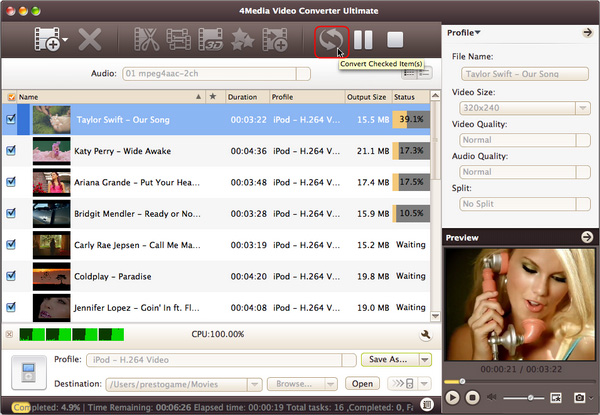
As 4Media Video Converter for Mac provides high conversion speed, you will see the conversion has been finished in just a few minutes - Sure, it depends on the file length of the AVI video you converted. You can just click the "Open" button to check the target MPEG file conveniently.
