


How to convert YouTube video to MP4 on Mac

Want to download and convert YouTube videos to MP4 format on Mac computer? A YouTube video downloader is needed, while 4Media YouTube Video Converter for Mac combines downloading and converting in one step. You can just browse the videos on youtube.com by the embeded browser, download them directly to mp4 format and save them on your Mac computer with this software. Please follow this guide.
Free download the Mac YouTube to MP4 converter here:
YouTube Video Converter for Mac Download
Step 1. Browse YouTube Videos
Visit www.youtube.com with embeded browser, and open your favorite YouTube videos. .
Step 2. Create a New Download+Convert Task
In the software interface, click "New Download" button on the toolbar. You can select MP4 format and other settings for output on the pop-up window.
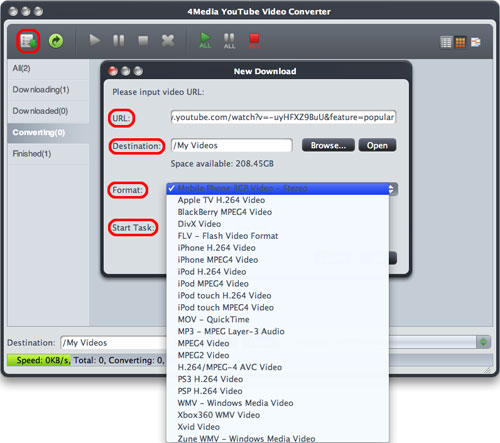
Destination: Click "Browse" button to select a folder for saving the output YouTube videos.
Format: Select the output format you want from the "Format" drop-down list. And here you need to choose "MPEG4 Video".
Step 4: Start Downloading
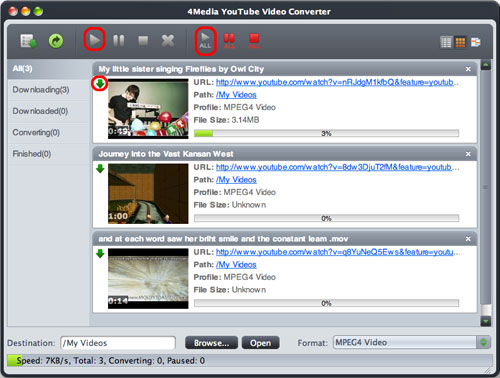
Click "OK" button on 'New Download' window to start downloading .
Tips:
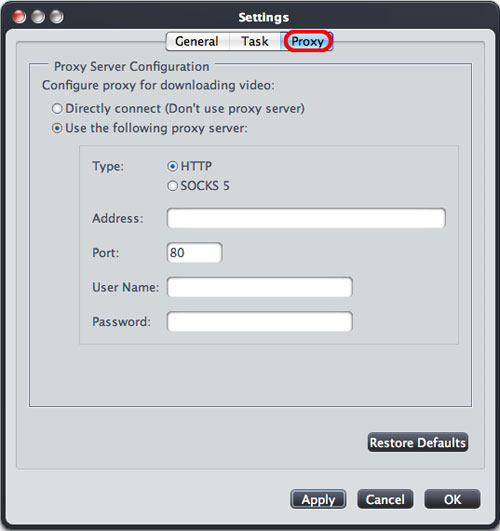
1. If your Internet Service Provider blocked YouTube site, you can bypass the firewall by setting the proxy server as below:
Click the "4Media YouTube Video Converter > Preferences > Settings > Proxy" tab, choose the proxy server type, enter the address and port of the proxy server, and if necessary, enter the user name and password, then click "OK" button to return to the main window and retry.
Now, you can download any YouTube video you like to MP4 format easily with 4Media YouTube Video Converter for Mac.
