


Guide: 4Media XviD Converter


The following guide will show you how to convert video to XviD with 4Media XviD Converter step by step.
Before you start, please download, install and launch 4Media XviD Converter.
Step 1: load files
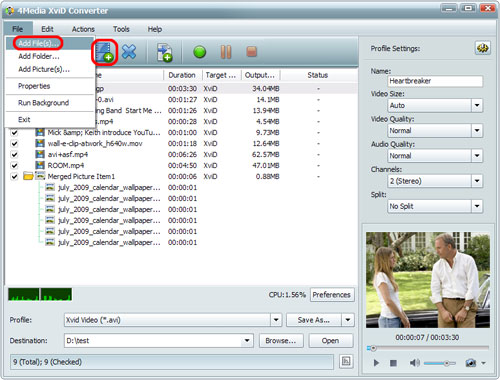
Click "Add File(s)" button on the toolbar or "File > Add File(s)" to load FLV files you want to convert. Or click "File > Add Folder" option to add all files in the folder you select.
Step 2: choose output format
click to open "Profile" drop-down list below the file list or in the "Target Profile" column, and choose the desired format from it.
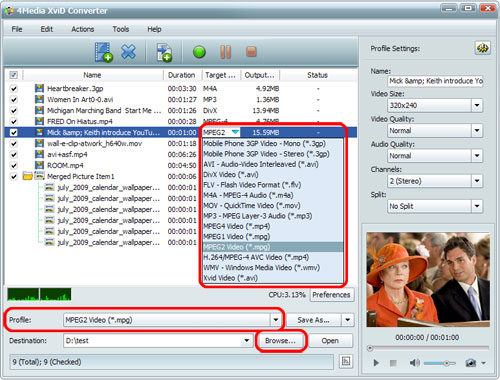
Click "Browse" button to set the destination folder for saving the output files.
Step 3: adjust output parameters (optional)
In the following we will show you the most frequently-used ways to adjust parameters.
1. Set advanced parameters
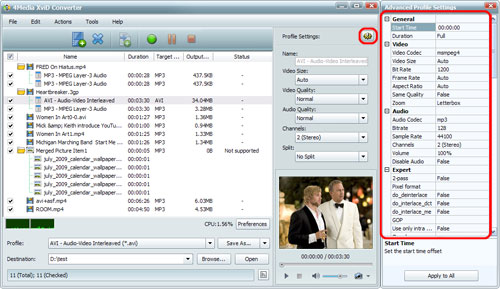
In the "Profile Settings" and "Advanced Profile Settings" panels, there're more parameters for you to adjust as below.
2. Specify output file size
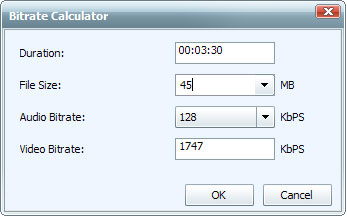
Click "Tools > Bitrate Calculator" option, then enter the size you want in the "File Size" textbox, and choose desired audio bit rate. The video bit rate will be calculated promptly. Click "OK", then the entered size will be displayed in the "Output Size" column of the file list, and the bit rate will be changed in the "Advanced Profile Settings" panel.
3. Split file
In the "Profile Settings" panel, choose a split mode from the "Split" drop-down list or choose "Customize Size" or "Customize Time". The file will be split automatically during conversion.
4. Convert certain segment
Expand the "Advanced Profile Settings" panel, and enter the start time and duration of the wanted segment respectively in the "Start Time" and "Duration" textbox. The segment you specify will be converted automatically during conversion.
5. Add several profiles to one video
If you want to output several files with different formats or settings from the same file at one time, this feature may help.
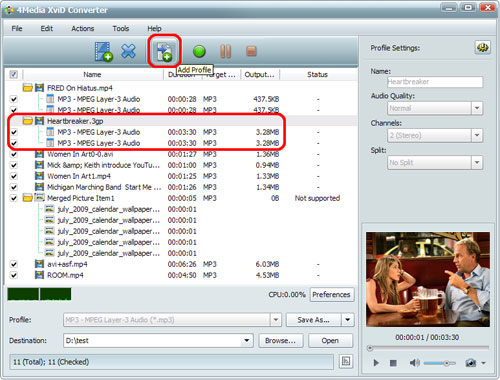
Highlight the video, and click "Add Profile" on the toolbar or "Edit > Add Profile" option to add a profile for the video, then change the default profile to the one you want and adjust its parameters. Repeat the process to add as many profiles as you want. Then output several files from the video within one click.
Click the "Convert" button on the toolbar to start converting all the checked files in batches.
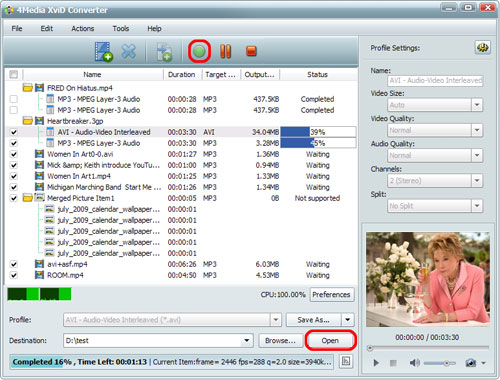
After conversion completed, click "Open" button at the bottom to check the output files directly.

Featured Guides
Guides Categories
Video/Audio Guides
- 4Media Audio Converter Pro Tutorial
- 4Media Movie Editor 6 Tutorial
- Video Converter Ultimate Tutorial
- How to convert DAT to other videos
DVD/CD/Blu-Ray Guides
- 4Media Blu Ray Converter for Mac Tutorial
- How to convert Blu-ray disc to video files
- How to burn AVI, MPEG, VOB, DAT, M2V, MPG to DVD on Mac
- How to burn DivX to DVD on Mac
iPod Guides
- 4Media iPod Max Guide
- How to convert AVI, MPEG to iPod MP4 format
- Guide: 4Media iPod to PC Transfer
- How to convert DVD to iPod on Mac
iPhone Guides
- 4Media iPhone Contacts Transfer for Mac Tutorial
- 4Media iPhone Contacts Transfer Tutorial
- 4Media iPhone Ringtone Maker for Mac Tutorial
- 4Media iPhone Max Guide
iPad Guides
Youtube/Online Video Guides
- 4Media Online Video Converter for Mac Guide
- 4Media Online Video Downloader for Mac Guide
- 4Media Online Video Converter Guide
- 4Media Online Video Downloader Guide
PPT/PDF Guides
Others
Articles
- How to download YouTube videos for free
- How to download/convert YouTube videos to iPod
- How to download and convert YouTube videos
- All features of apple iPhone
- Now you can get more TV offerings from Apple iTunes
- Video Streamer HAVA from Snappy Multimedia
- iPod Growth Driving Demand for Flash Memory
- MediaMan HVX-3500 Review
- Uncertain whether new iPod will be delayed or not because of hurdles
- T3's top five iPod alternatives
- Envivio Exhibits MPEG-4 Solutions from Mobile to HD at CCBN2006