


Guide: 4Media Video Frame Capture for Mac


This following article will guide you to capture and output pictures in singles or batches from video files on your Mac step by step. Firstly, download, install and launch 4Media Video Frame Capture for Mac.
Step 1: Load video files
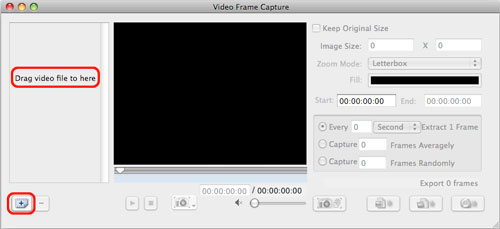
Click the "Add Video File" button (plus sign) in the left bottom to add video files, or just drag video files to the file list. If you want to delete the video file loaded, choose the video file and click the "Remove From List" button (minus sign) to remove the selected video file.
Step 2: Adjust output settings
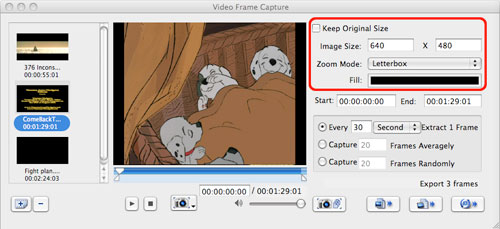
If you want to keep the original image size, just jump to Step 3. Otherwise, uncheck the "Keep Original Size" checkbox, and enter the image size you want, set the zoom mode and choose the fill color.
Step 3: Capture pictures
The software provides two methods for capturing pictures: single capture and batch capture.
1. Single capture
The software offers three options to capture single frame: "Capture to Picture List", "Capture from Frame Window", and "Direct Export".
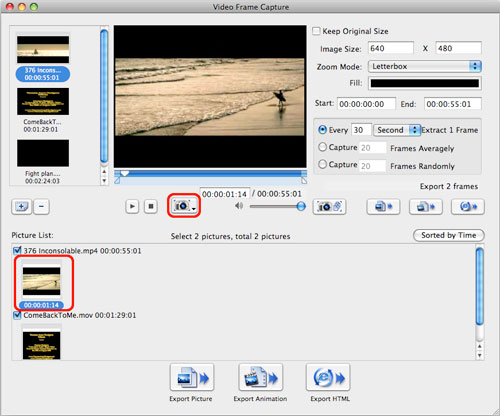
Choose the video file you want, click the play button below the built-in player to play the video. When it comes to the frame you like, long press the capture button below the player, and choose the picture capture way you want. The way you choose will be the default one when you short press the button to capture picture next time.
If you choose "Capture to Picture List", then the captured picture will be displayed in the picture list for your preview and export.
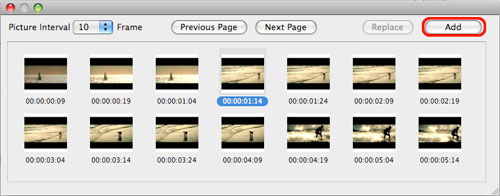
If you choose "Capture from Frame Window", then the frame window will pop up, the current frame will be highlighted by default. Click the "Add" button to add the frame to the picture list. If you're not satisfied with the frame, then choose the best picture you want from the frame list and add it to the picture list. Set "Picture Interval" and click "Previous Page" or "Next Page" button to browse more frames.
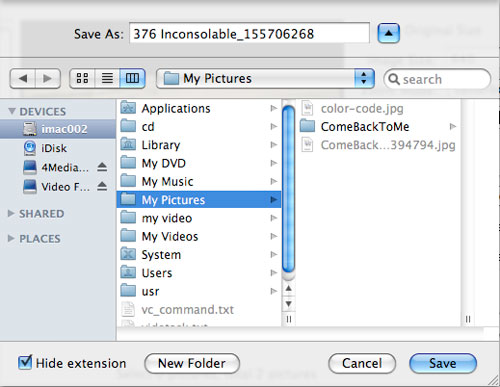
If you choose "Direct Export", then a dialog box pops up to let you rename the picture and choose the output folder to save it directly.
2. Batch capture
If you want to batch capture pictures and output them directly in one step, jump to Step 4.
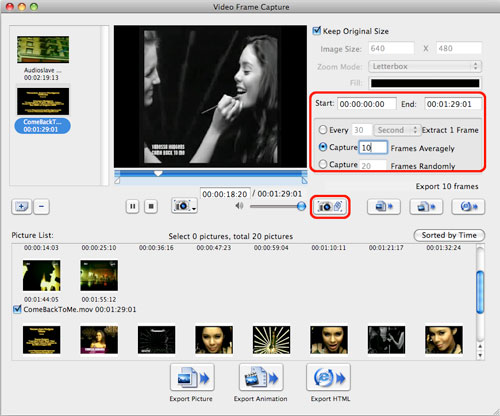
Firstly, set the batch capture way on the right panel: averagely by time, averagely by frame numbers, randomly by frame numbers. After setting the capture way, enter the seconds, minutes, hours or frames as the capture interval, or enter the target frame numbers. Moreover, you can enter the start time and end time on the right panel to set the segment for batch capture.
Secondly, click the "Batch Capture Pictures" button to start capturing pictures, then the captured pictures will be displayed in the picture list.
Step 4: Output captured pictures
There're three ways to output pictures: export single frame directly, export frames in batches directly and export from the picture list.
1. Export single frame directly
Long press the button below the player, and choose "Direct Export" to export the current frame directly. Or you can drag the current frame from the player to local directly for saving.
2. Export frames in batches directly
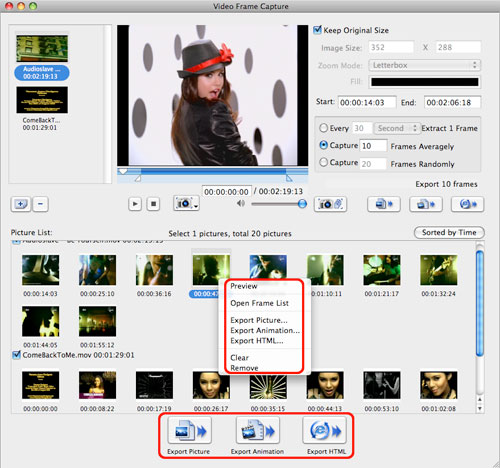
The three buttons at the right bottom of the main interface are respectively "Export Picture", "Export Animation" and "Export HTML". You can use the three buttons to export captured pictures directly.
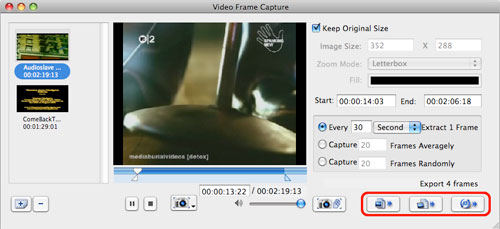
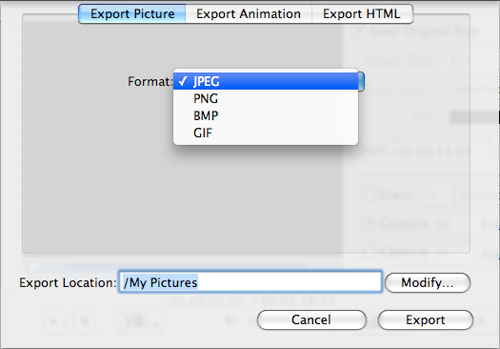
Choose the video file to capture picture, and set the batch capture way, then click the "Export Picture" button (the first button) at the right panel to open "Export Picture" dialog, then set "Picture Format" and "Export Location" option to export the captured pictures directly.
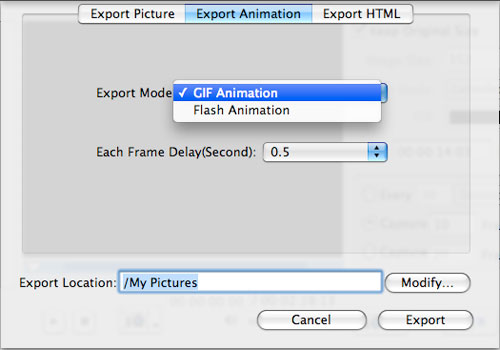
Or click "Export Animation" button (the second one) to open "Export Animation" dialog, set the "Export Mode", "Each Frame Delay (Second)" and "Export Location" option to export captured pictures as animation.
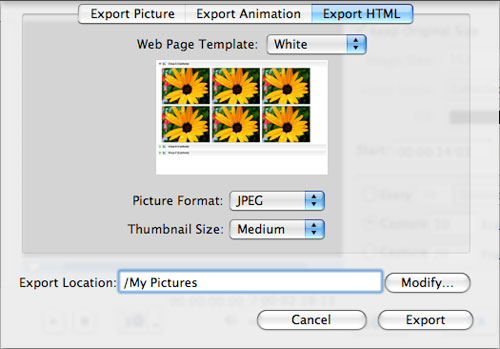
Or click "Export HTML" button (the third one) to open "Export HTML" dialog, set the "Web Page Template", "Picture Format", "Thumbnail Size" and "Export Location" option to output them as HTML webpage.
3. Export pictures from picture list
Before exporting pictures, you can preview the pictures in the picture list by right-click. If you're not happy with the picture you capture, right click the picture and select "Open Frame List" to enter the frame window, and choose your favored one to replace the selected one. Or choose "Clear" or "Delete" to clear all the pictures or delete the selected pictures in the picture list.
Click the "Export Picture", "Export Animation" or "Export HTML" button at the bottom to export all the pictures in the picture list. If you only want to export certain pictures, choose the pictures you want to export and open the right-click menu, and choose "Export Picture…", "Export Animation…" or "Export HTML…" option to export the selected pictures in your way.

Featured Guides
Guides Categories
Video/Audio Guides
- 4Media Audio Converter Pro Tutorial
- 4Media Movie Editor 6 Tutorial
- Video Converter Ultimate Tutorial
- How to convert DAT to other videos
DVD/CD/Blu-Ray Guides
- 4Media Blu Ray Converter for Mac Tutorial
- How to convert Blu-ray disc to video files
- How to burn AVI, MPEG, VOB, DAT, M2V, MPG to DVD on Mac
- How to burn DivX to DVD on Mac
iPod Guides
- 4Media iPod Max Guide
- How to convert AVI, MPEG to iPod MP4 format
- Guide: 4Media iPod to PC Transfer
- How to convert DVD to iPod on Mac
iPhone Guides
- 4Media iPhone Contacts Transfer for Mac Tutorial
- 4Media iPhone Contacts Transfer Tutorial
- 4Media iPhone Ringtone Maker for Mac Tutorial
- 4Media iPhone Max Guide
iPad Guides
Youtube/Online Video Guides
- 4Media Online Video Converter for Mac Guide
- 4Media Online Video Downloader for Mac Guide
- 4Media Online Video Converter Guide
- 4Media Online Video Downloader Guide
PPT/PDF Guides
Others
Articles
- How to download YouTube videos for free
- How to download/convert YouTube videos to iPod
- How to download and convert YouTube videos
- All features of apple iPhone
- Now you can get more TV offerings from Apple iTunes
- Video Streamer HAVA from Snappy Multimedia
- iPod Growth Driving Demand for Flash Memory
- MediaMan HVX-3500 Review
- Uncertain whether new iPod will be delayed or not because of hurdles
- T3's top five iPod alternatives
- Envivio Exhibits MPEG-4 Solutions from Mobile to HD at CCBN2006