


Guide: 4Media ISO Creator


This guide will show you how to create an ISO image file and how to extract ISO image files from CD/DVD to copy and backup onto computer or other storage mediums. Please refer the below steps to learn how to convert DVD/CD to ISO and help you accomplish the whole task.
Step 1: Insert a usable CD/DVD disc
Run 4Media ISO Creator and insert a usable CD/DVD disc.
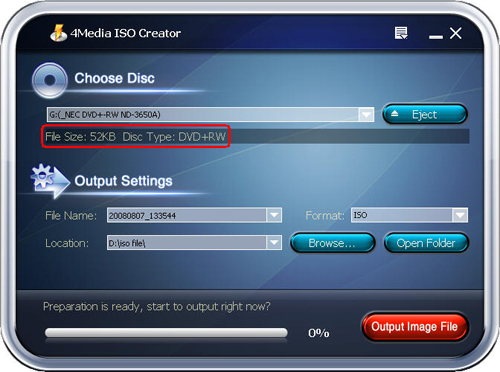
Tip: After inserting a CD/DVD, you can select proper drive which holds the disc. Then the information of disc size & type will be displayed in main interface.
Step 2: Set proper output parameters
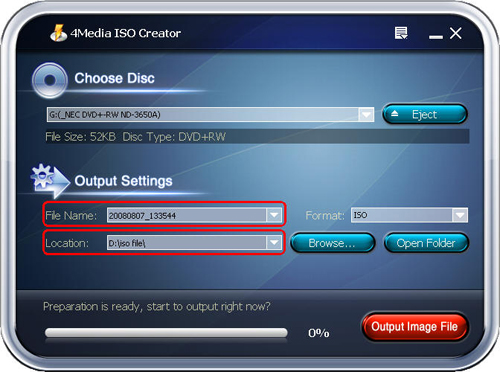
Set the target file name and location from the "File Name" and "Location" drop-down list.
Step 3: Make ISO file
Click "Output Image File" to start the converting process. And the software will remind you of successful output when converting is finished.
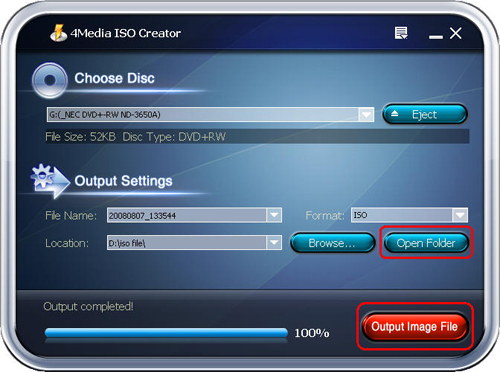
Tip: After the converting process is finished, you can click "Open Folder" to find the output ISO file in the destination folder.
Now, the ISO file you need is made successfully and the below features will bring a great help to meet various user needs.
Other Features
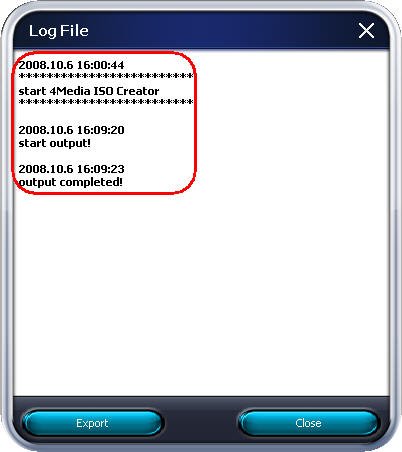
1. View the log file
2. Set after done action
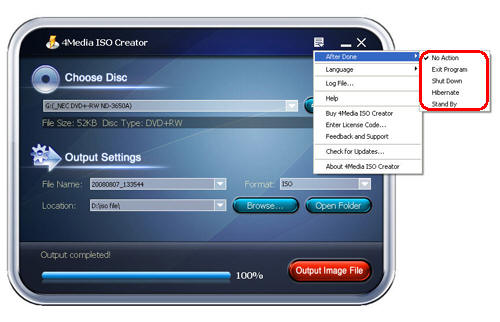
3. Optional interface languages
More ISO tips
How to burn iso to CD/DVD?

Featured Guides
Guides Categories
Video/Audio Guides
- 4Media Audio Converter Pro Tutorial
- 4Media Movie Editor 6 Tutorial
- Video Converter Ultimate Tutorial
- How to convert DAT to other videos
DVD/CD/Blu-Ray Guides
- 4Media Blu Ray Converter for Mac Tutorial
- How to convert Blu-ray disc to video files
- How to burn AVI, MPEG, VOB, DAT, M2V, MPG to DVD on Mac
- How to burn DivX to DVD on Mac
iPod Guides
- 4Media iPod Max Guide
- How to convert AVI, MPEG to iPod MP4 format
- Guide: 4Media iPod to PC Transfer
- How to convert DVD to iPod on Mac
iPhone Guides
- 4Media iPhone Contacts Transfer for Mac Tutorial
- 4Media iPhone Contacts Transfer Tutorial
- 4Media iPhone Ringtone Maker for Mac Tutorial
- 4Media iPhone Max Guide
iPad Guides
Youtube/Online Video Guides
- 4Media Online Video Converter for Mac Guide
- 4Media Online Video Downloader for Mac Guide
- 4Media Online Video Converter Guide
- 4Media Online Video Downloader Guide
PPT/PDF Guides
Others
Articles
- How to download YouTube videos for free
- How to download/convert YouTube videos to iPod
- How to download and convert YouTube videos
- All features of apple iPhone
- Now you can get more TV offerings from Apple iTunes
- Video Streamer HAVA from Snappy Multimedia
- iPod Growth Driving Demand for Flash Memory
- MediaMan HVX-3500 Review
- Uncertain whether new iPod will be delayed or not because of hurdles
- T3's top five iPod alternatives
- Envivio Exhibits MPEG-4 Solutions from Mobile to HD at CCBN2006