


Guide: 4Media HD Video Converter for Mac


How to convert HD video files using this HD video converter on Mac? The following step-by-step guide will show you how to complete the conversion task. First, download 4Media HD Video Converter for Mac.
1. Install and run the software
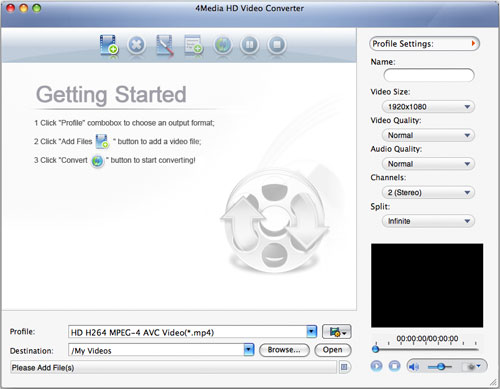
After installing and running the software, you will see the main interface as below.
2. Add file
Click "Add File" button on the toolbar or "File> Add File" to load files.
3. Choose output format
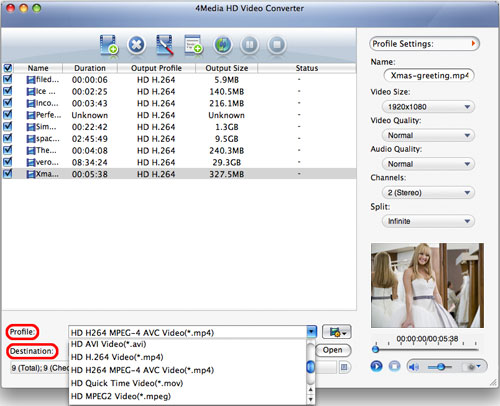
Choose the file, click "Profile" drop-down button to choose the format you need, then click "Browse..." button to choose destination folder for saving output files.
If you want to do more with your video and audio files, please refer to the "More usage skills".
4. Convert
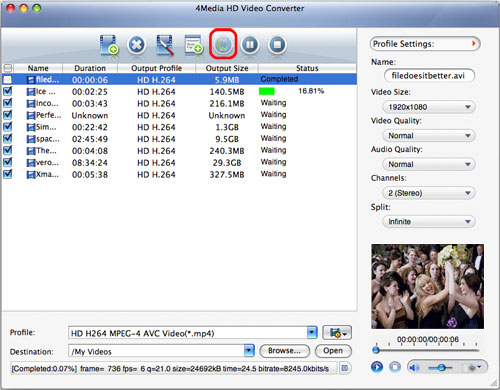
After choosing the format, you just need to click "Convert" button on the toolbar to start the task.
Additionally, the software provides you with more features to perfect your video. Click the feature titles below for more details on the operation.
More usage skills
1. Clip video segment
2. Add multiple profiles for the same video file
3. Get exact video file size with bitrate calculator
4. Adjust general and advanced profile settings
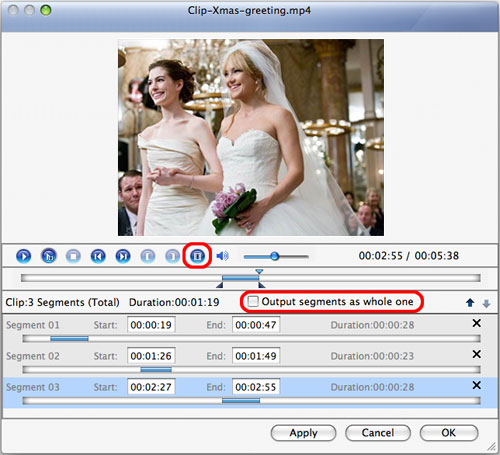
At first, select a video/audio file in the file list, then click "Clip" button on the toolbar to open "Clip" window.
Play the file and set the start & end point you want to create segment in the segment list. If you want to get more segments, click "New Clip" button and repeat the above steps.
If you check "Output segments as whole one" option and click "OK" button, then these segments will be outputted as a merged one to the file list. Otherwise, they will be outputted respectively. Of course, you can also adjust the sequence of the segments in the segment list.
2. Add multiple profiles for the same video file
Select the video and click "Add Profile" button to set multiple output formats for one file, then you can get several video formats from one source video for playback on your different players.
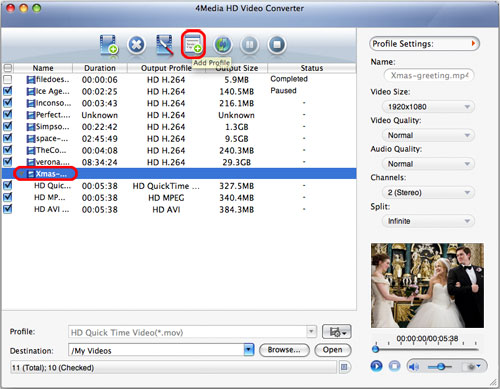
3. Get exact video file size with bitrate calculator
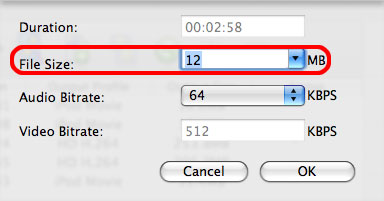
If you want to output a file in exact size, select the video file and click "Tools > Bitrate Calculator", and input the file size you need.
4. Adjust general and advanced profile settings
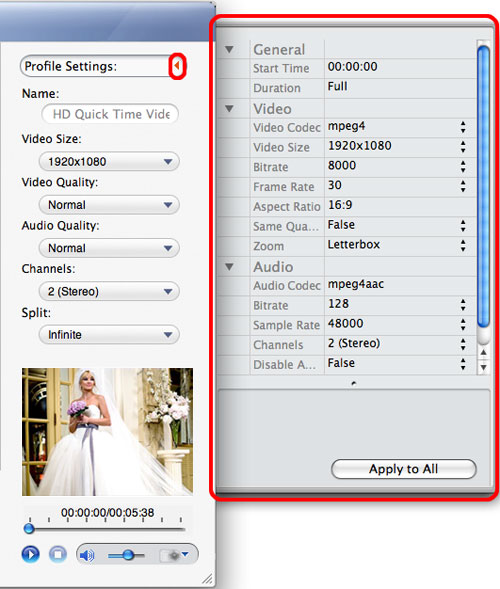
The software provides lots of general profile settings adjustable for your conversion. Click "Advanced Profile Settings" button to set more parameters for satisfying more needs.

Featured Guides
Guides Categories
Video/Audio Guides
- 4Media Audio Converter Pro Tutorial
- 4Media Movie Editor 6 Tutorial
- Video Converter Ultimate Tutorial
- How to convert DAT to other videos
DVD/CD/Blu-Ray Guides
- 4Media Blu Ray Converter for Mac Tutorial
- How to convert Blu-ray disc to video files
- How to burn AVI, MPEG, VOB, DAT, M2V, MPG to DVD on Mac
- How to burn DivX to DVD on Mac
iPod Guides
- 4Media iPod Max Guide
- How to convert AVI, MPEG to iPod MP4 format
- Guide: 4Media iPod to PC Transfer
- How to convert DVD to iPod on Mac
iPhone Guides
- 4Media iPhone Contacts Transfer for Mac Tutorial
- 4Media iPhone Contacts Transfer Tutorial
- 4Media iPhone Ringtone Maker for Mac Tutorial
- 4Media iPhone Max Guide
iPad Guides
Youtube/Online Video Guides
- 4Media Online Video Converter for Mac Guide
- 4Media Online Video Downloader for Mac Guide
- 4Media Online Video Converter Guide
- 4Media Online Video Downloader Guide
PPT/PDF Guides
Others
Articles
- How to download YouTube videos for free
- How to download/convert YouTube videos to iPod
- How to download and convert YouTube videos
- All features of apple iPhone
- Now you can get more TV offerings from Apple iTunes
- Video Streamer HAVA from Snappy Multimedia
- iPod Growth Driving Demand for Flash Memory
- MediaMan HVX-3500 Review
- Uncertain whether new iPod will be delayed or not because of hurdles
- T3's top five iPod alternatives
- Envivio Exhibits MPEG-4 Solutions from Mobile to HD at CCBN2006